How to Create New Products
-
There is a pre-requisite on creating new products. This is used to ensure that if the customer wants multiple services Pageboy can deliver.
-
Skills - The skill/s needed for the product/service offered.
-
Skill Time Padding - Time padding is used when the skill needs more time than the other skills. It will be used as an extra buffer time for the stylist. See Time Padding for more information.
-
This skill Time padding is used by the system as the secondary Time padding to be used, regardless of the Appointment padding set for all products, Product Time Padding will always be the first time padding to be used.
-
Skill time padding is used for certain products that needs more time. You can use this to have more time buffer for your stylists.
-
When you set this Skill padding, it will only be applicable to the skill you have applied it.
-
When creating a skill you can opt to have it empty or put time in minutes.
-
-
-
How to Create Skills Offered
-
Click Products/Services

-
Click Skills

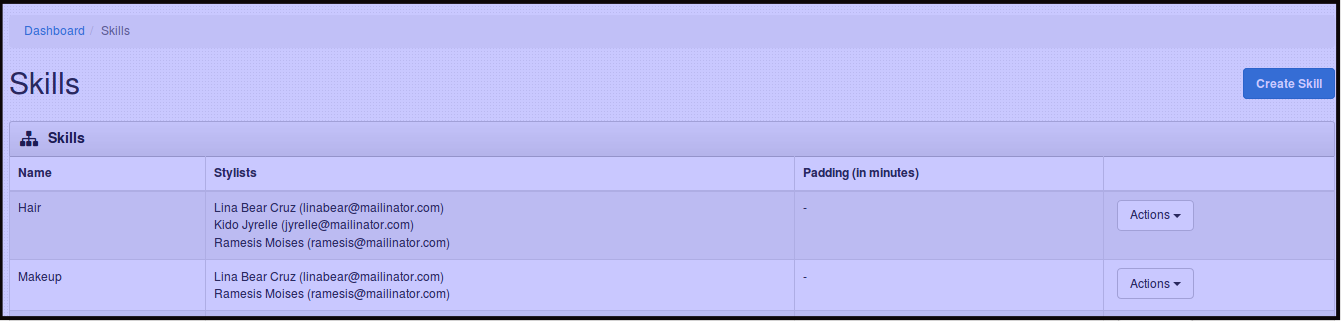
You will be directed to this page.
-
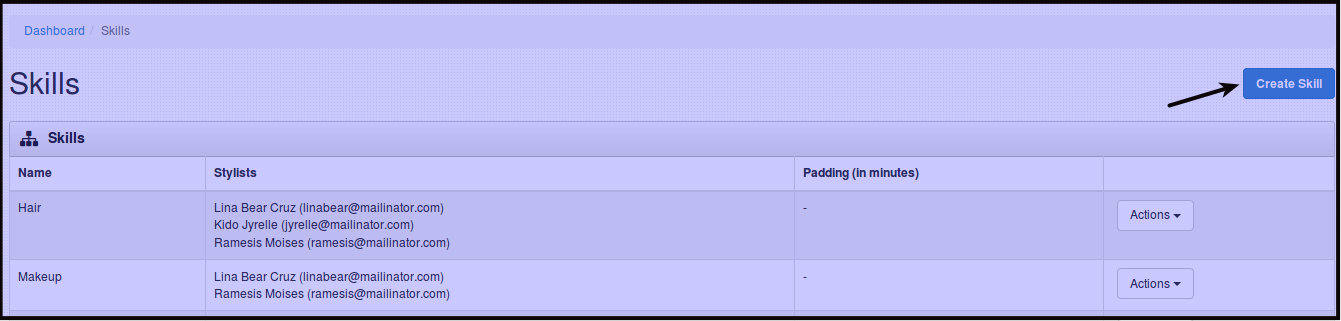
Click Create Skill
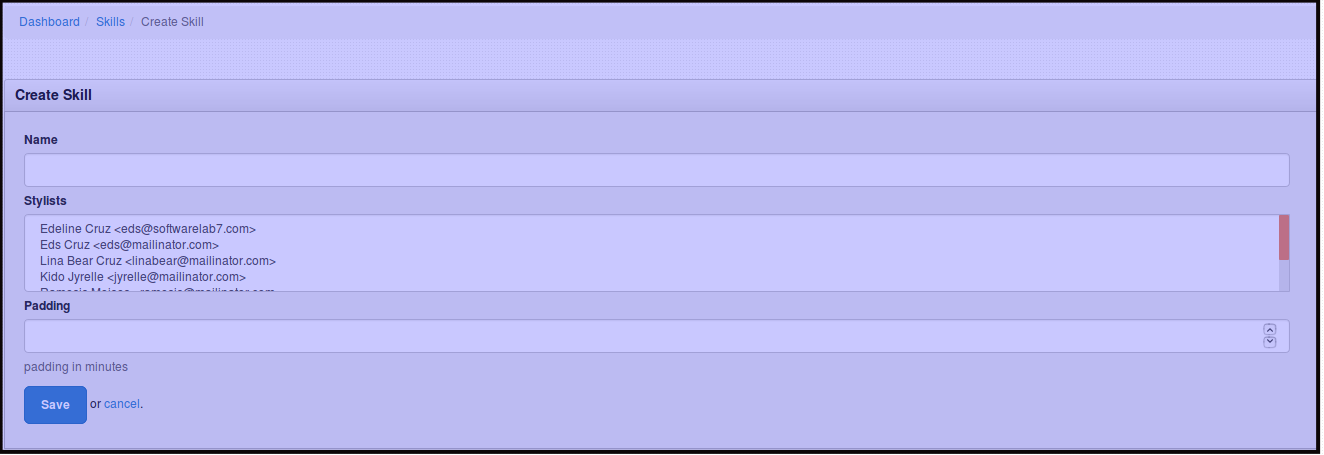
You will be directed to this page.
-
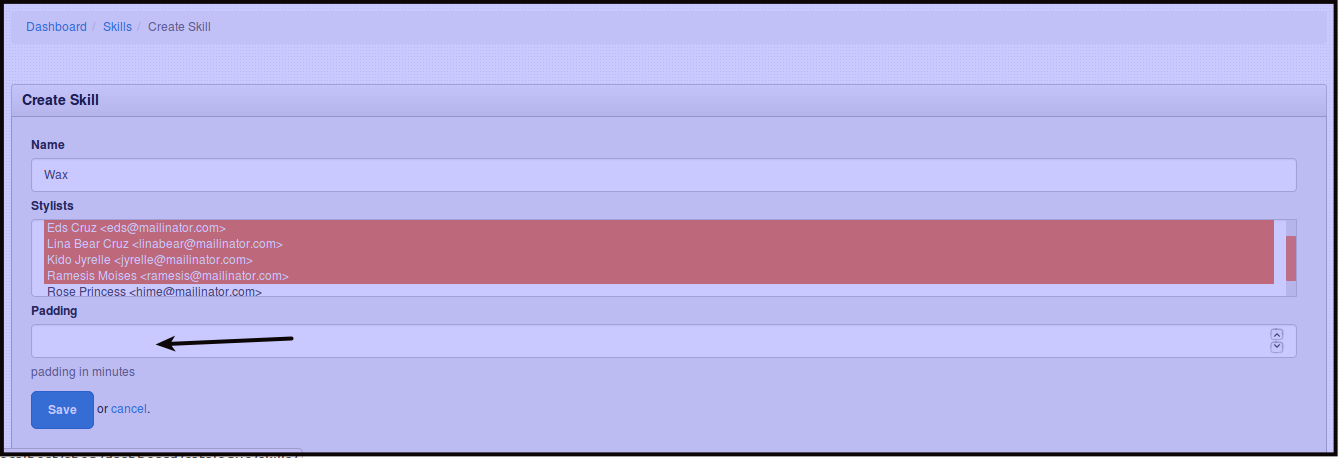
Fill out the name of Skill you want to put in, like Hair Cut or Make Up or the skill you want to put in on the services offered.
-
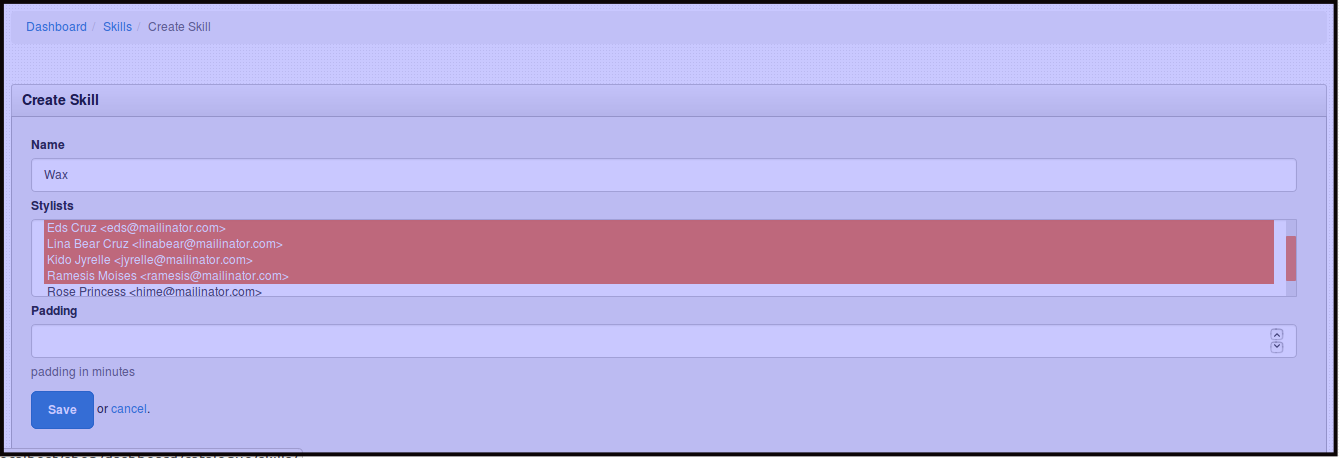
Click Stylists, you will see a dropdown that includes all of your stylists. Click on the stylist that should have the skill.
Select Stylist that should have that skill.
-
Add Time Padding if the Skill needs to take more time, the time padding is in minutes. You can opt to get this blank as well if you want too.
-
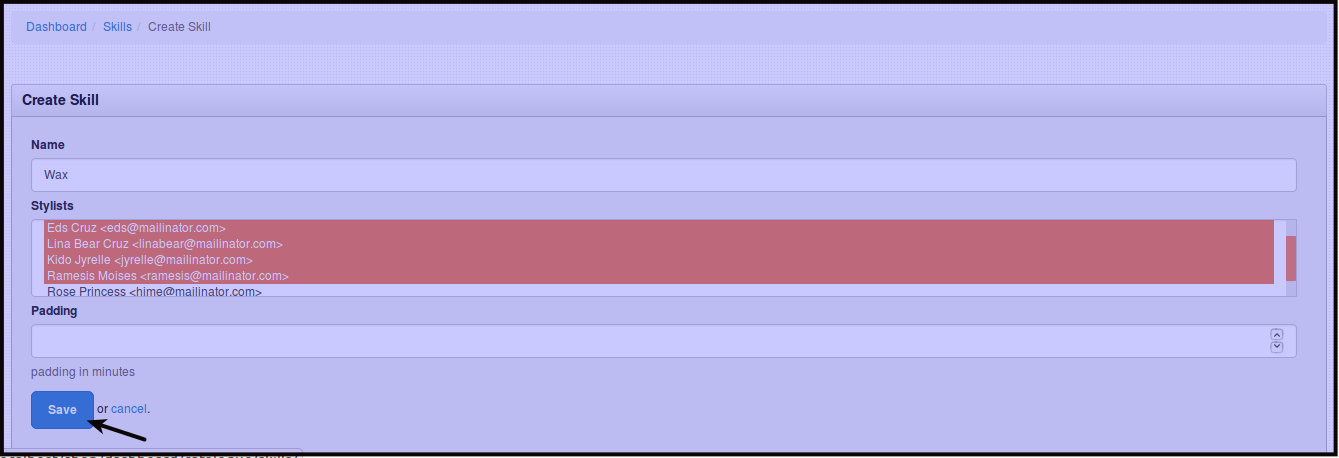
Click Save, to save the changes.
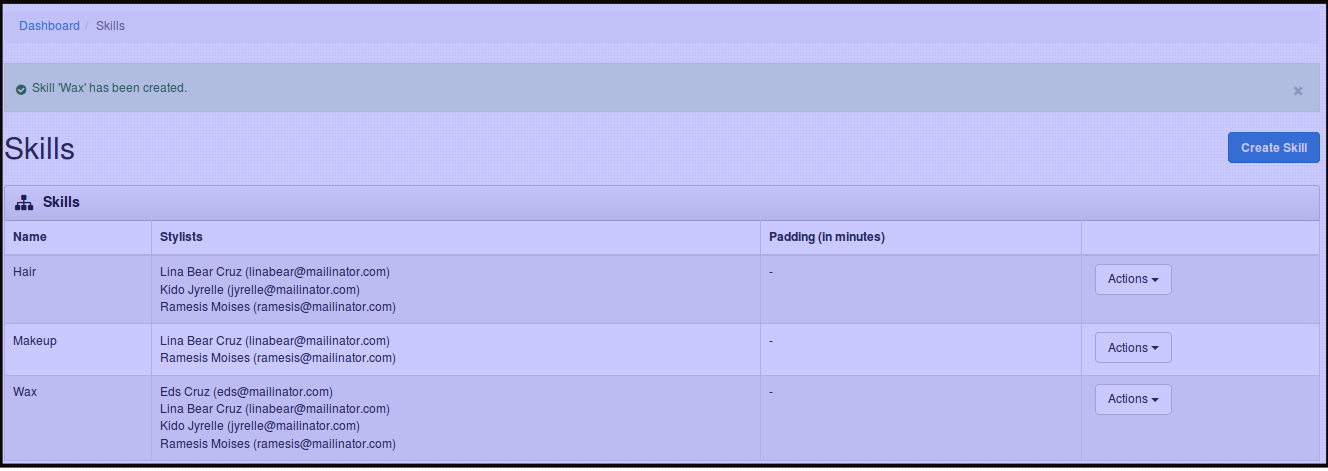
You will be directed to this page.
How to Edit Skills offered
-
Click Products/Services
-
Click Skills
You will be directed to this page.
-
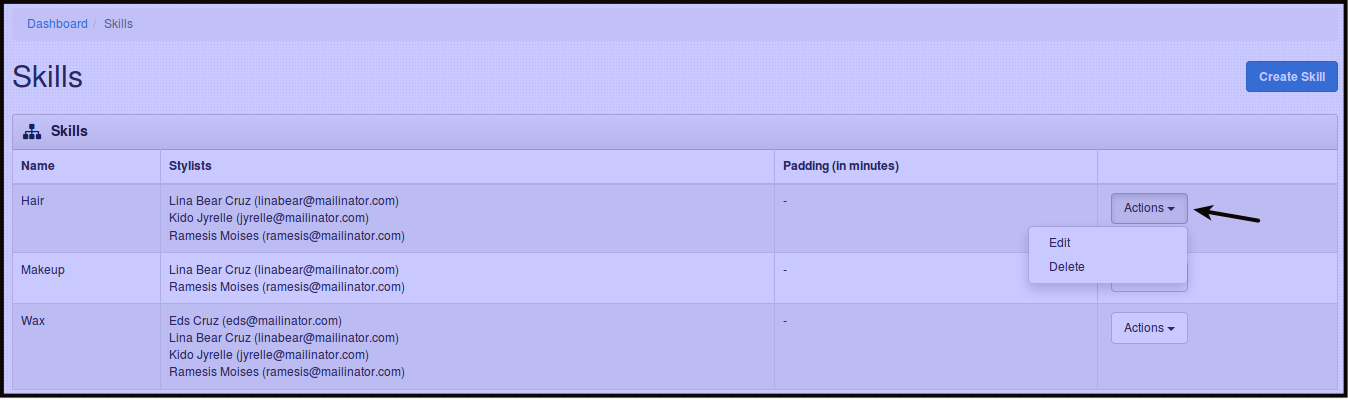
Click Actions beside the skill you want to edit.
-
Click Edit to edit the Skill name or the Stylist who should have the skill.
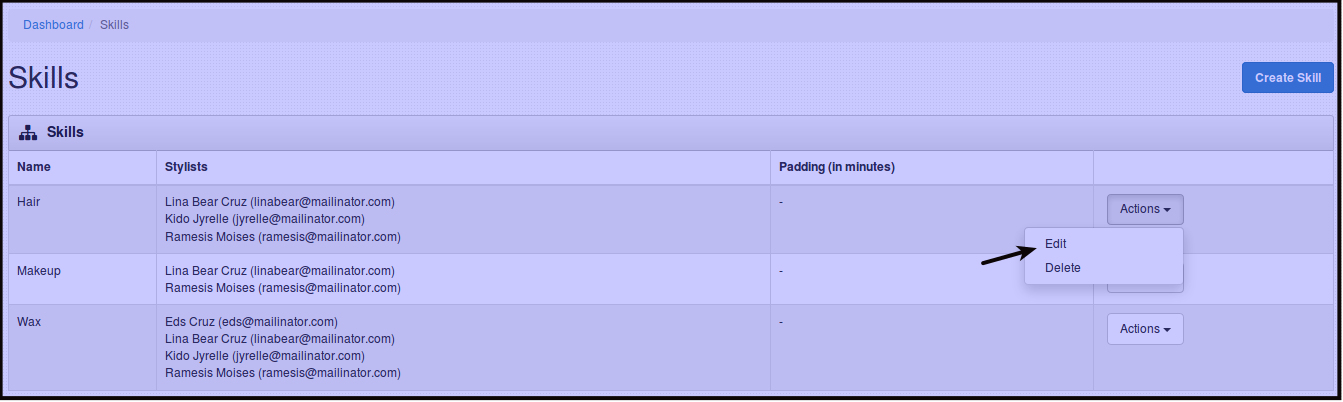
You will be directed to this page.
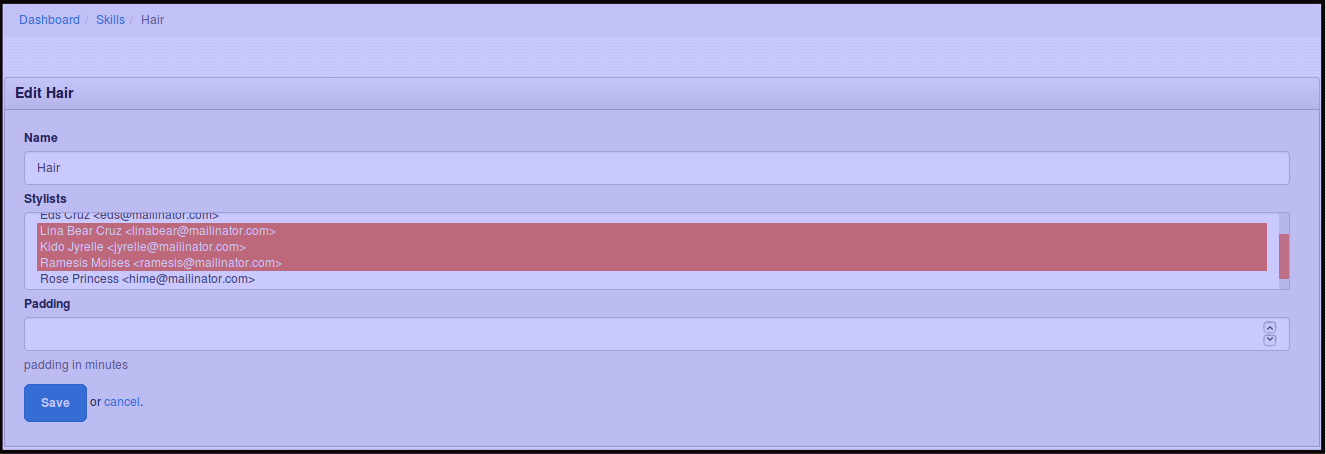
-
Click Save to save the changes.
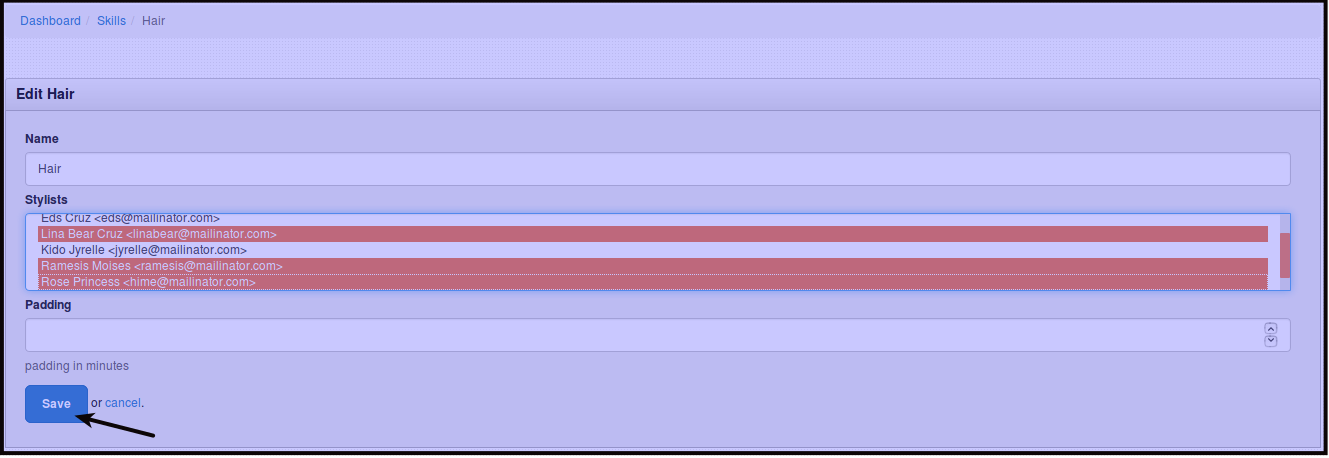
Then you will be directed to this page.
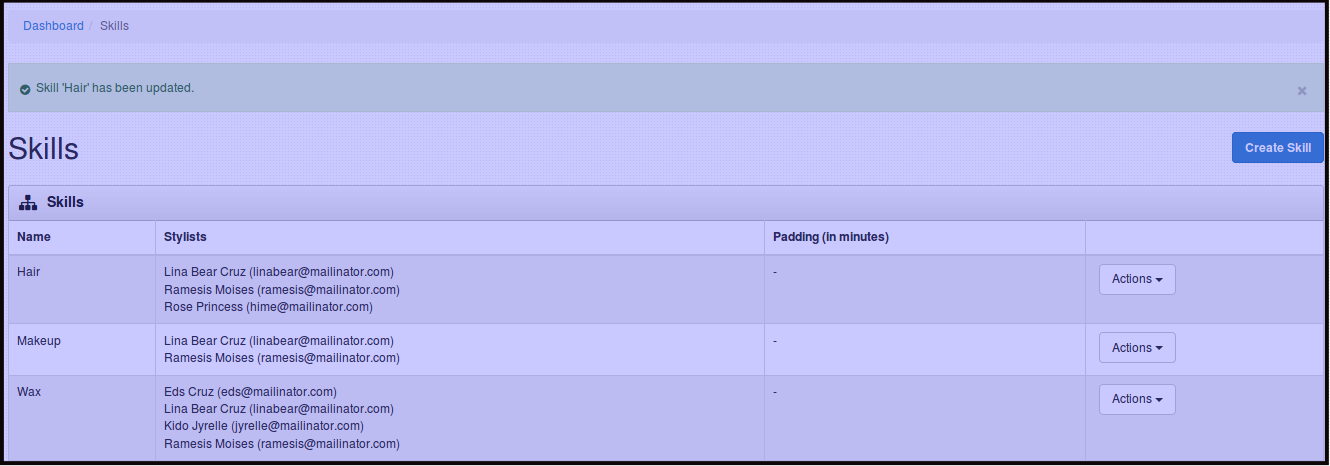
How to Delete a Skill
-
Click Catalogue
-
Click Skills
You will be directed to this page.
-
Click Actions beside the skill you want to Delete.
-
Click Delete to delete the Skill.
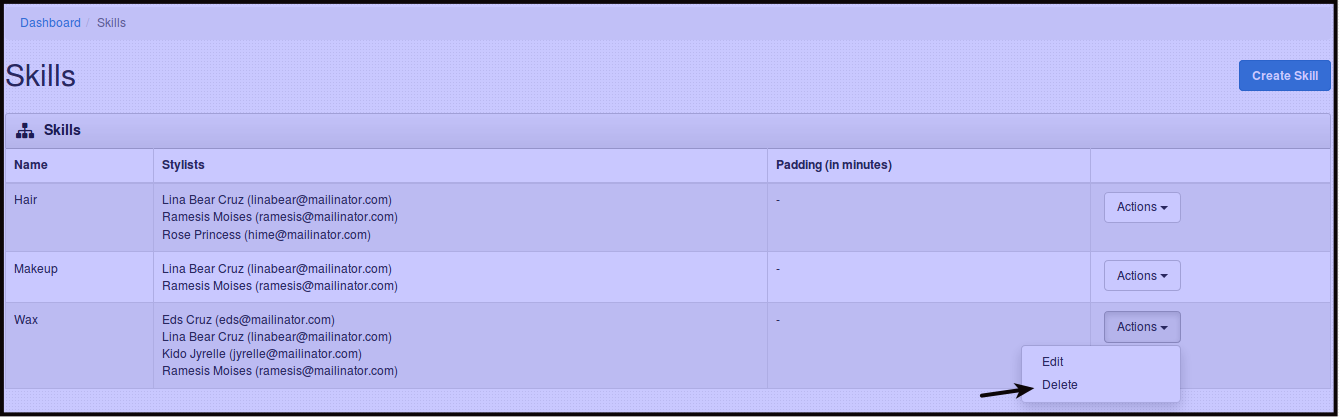
You will be directed to this page.
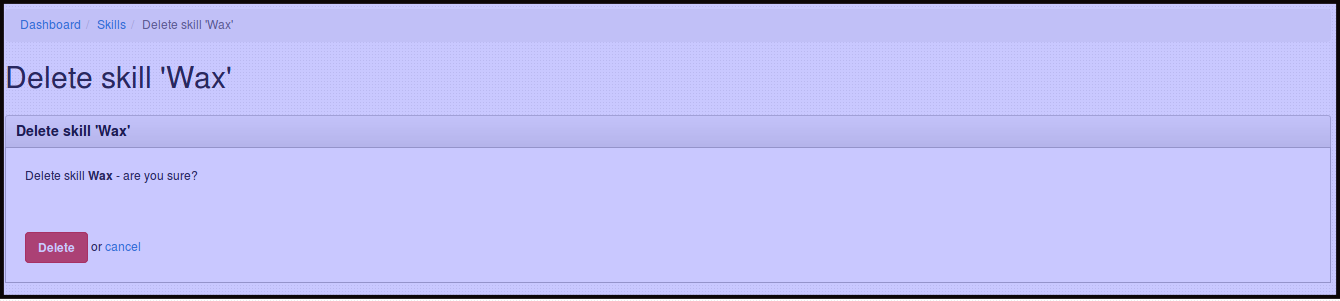
-
Click Delete to permanently delete the skill.
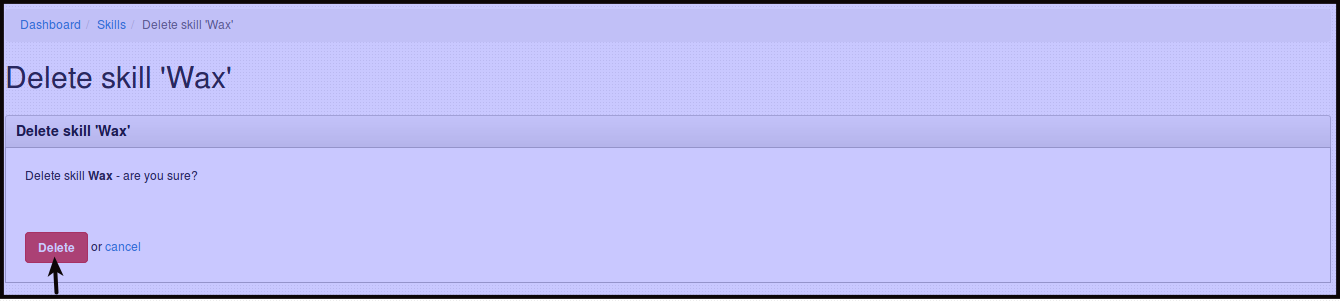
You will be directed to this page for confirmation.
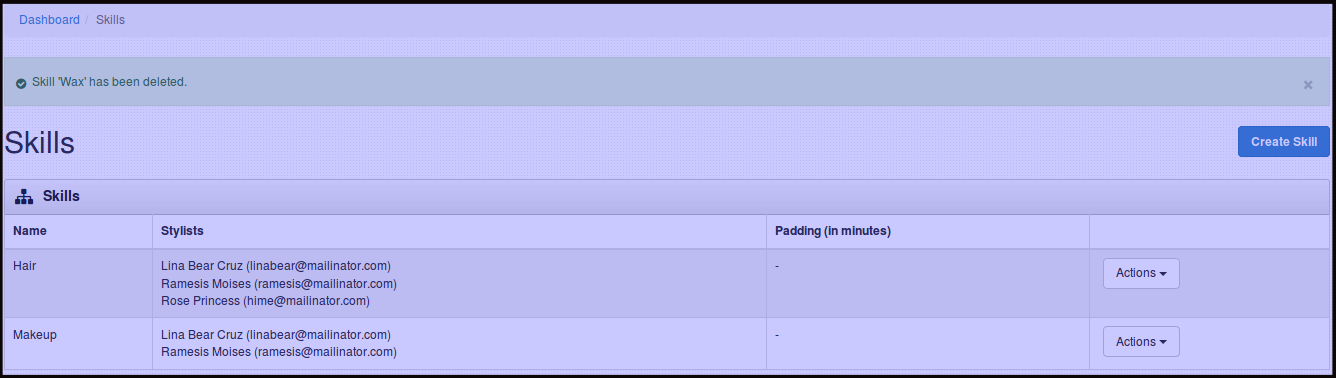
How to Create Product with Skills
-
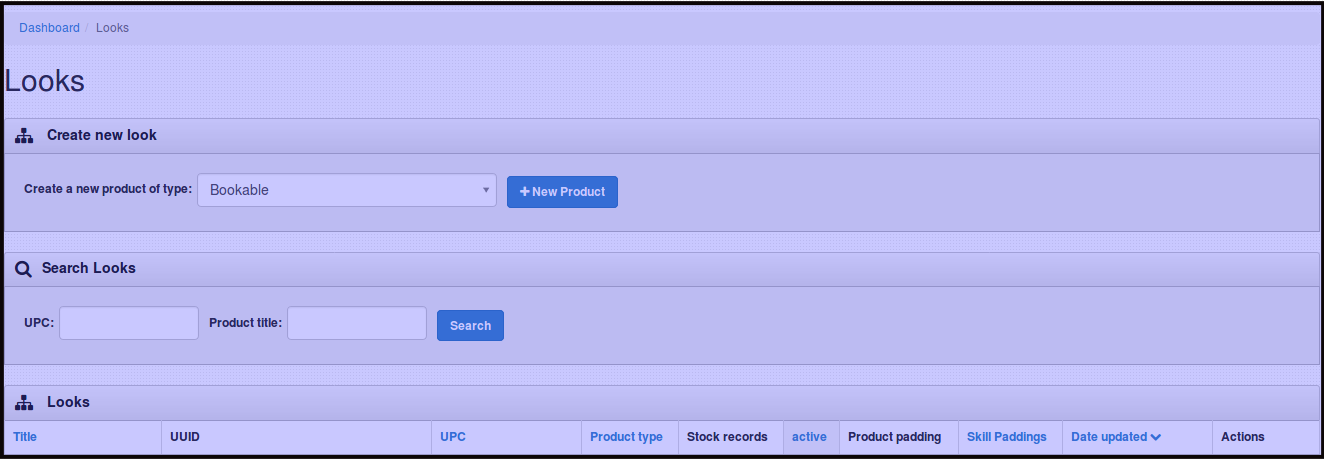
Click Products/Services then click Looks, you will be directed to the image below.
-
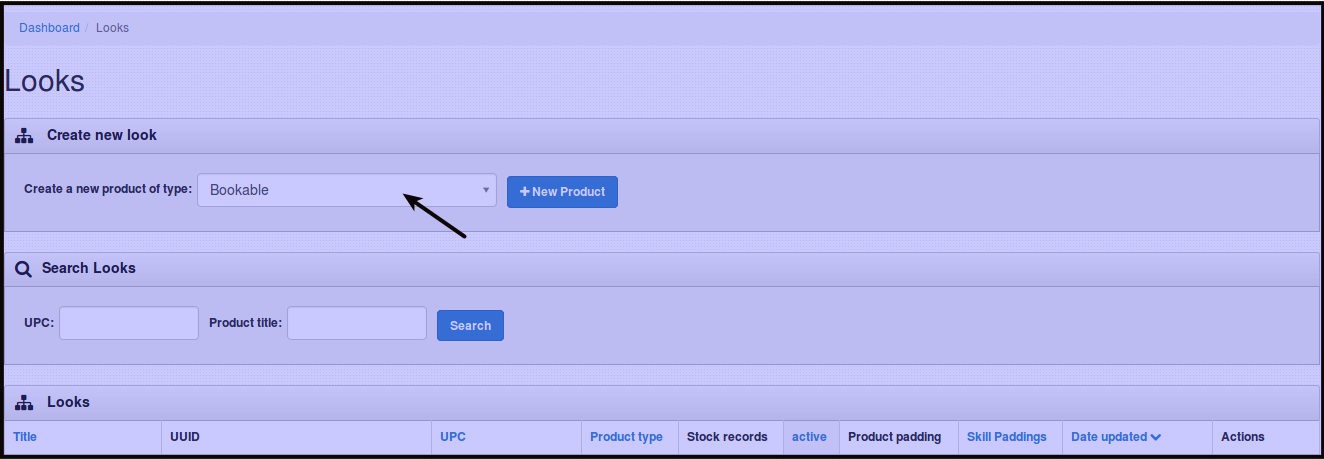
Click Choose type beside Create a new product of type. Choose Bookable.
-
Click +New Product.
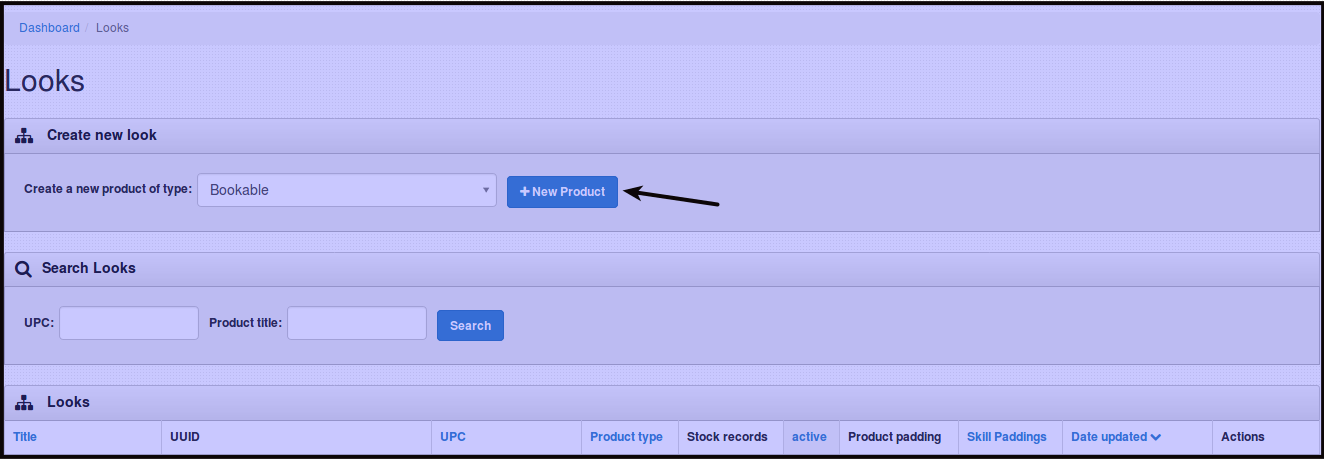
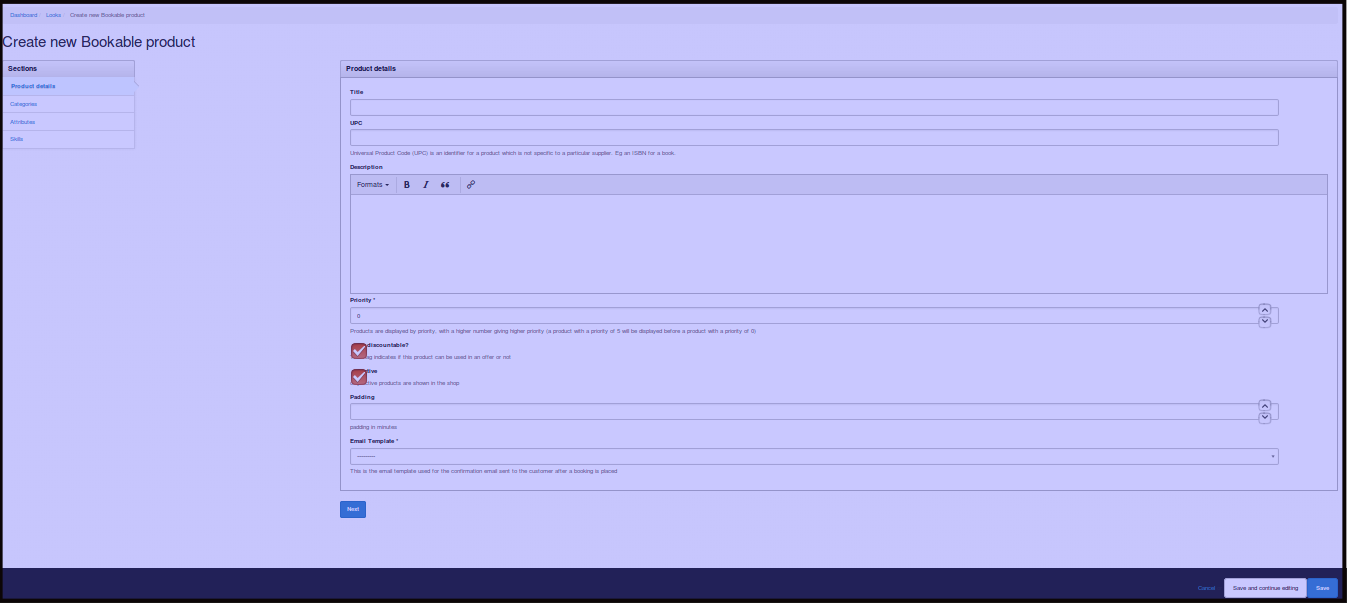
You will be directed to this page.
-
There are couple of sections that you have to fillout before saving the new product let us check all the sections.
-
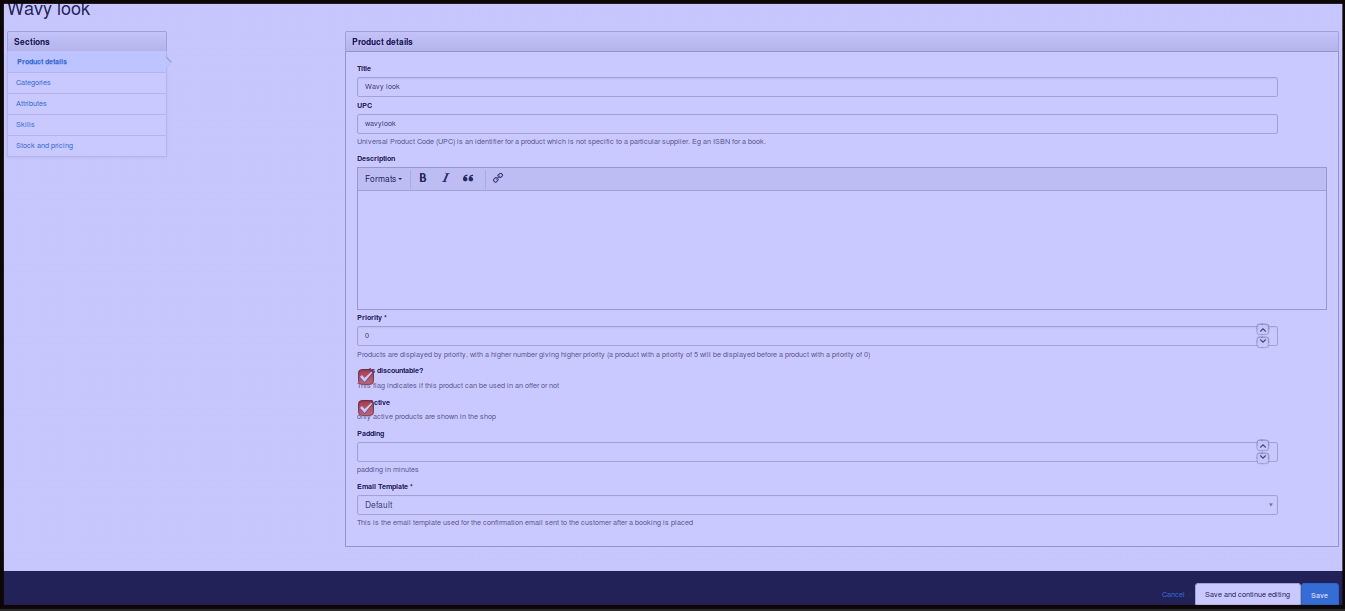
Product Details - This is where you put in details for your products.
-
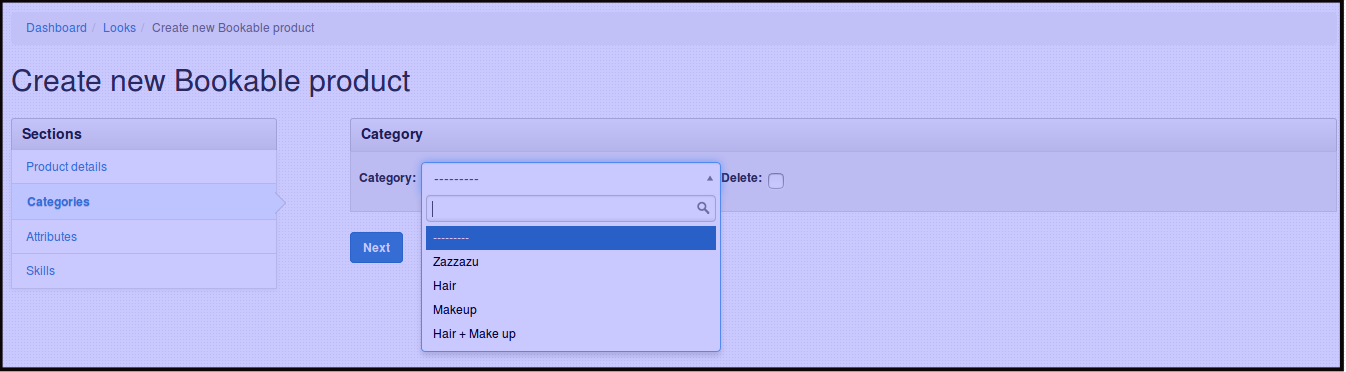
Categories - This is where you put in which category your product will be put in.
-
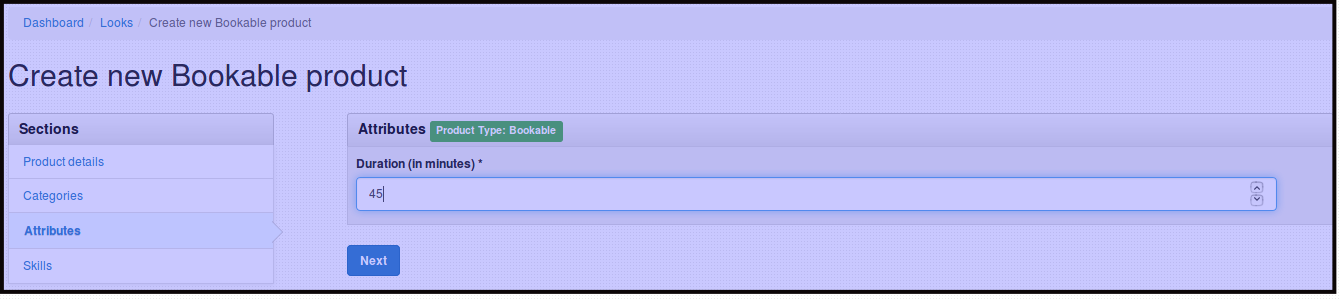
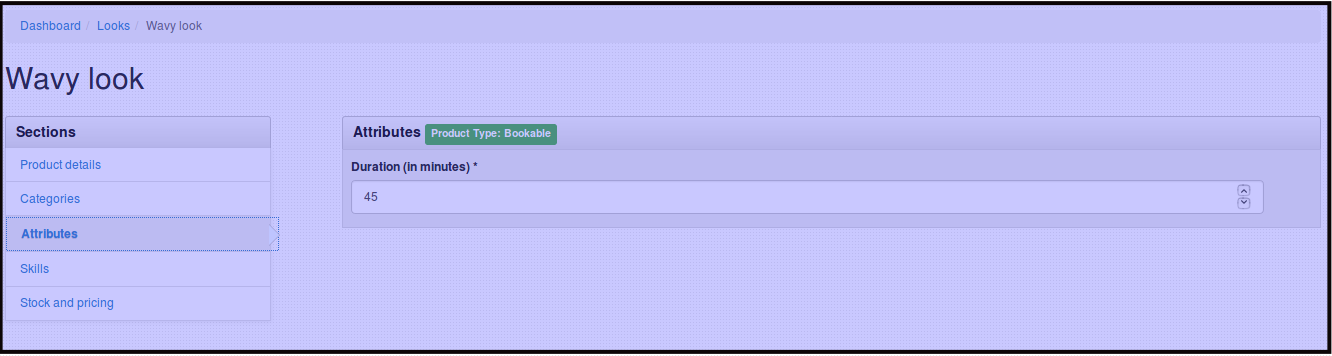
Attributes - This is where you put in how many minutes the hair style or service duration is.
-
Skills - This is where you can add up the skill/s your product needs that will determine the number of stylist your product needs.
-
-
Fill out Product Details section.
-
Title- name that referred to product.
-
UPC- or Universal Product Code, this is very useful in creating barcode symbol. Make sure to put in UPC without spaces this can be used when creating product/service promotions when you want to put this on discounted price or sale. Make sure to put in unique UPC on every service/product you will create.
-
Description- refers to product description. This is the right venue to describe the look.
Important Note: Refrain from copy pasting from web straight to this section, this results to rendering of style copied from online. To avoid this, paste your copied words to a text editor tool first, for Mac users use TextEdit. From a text editor tool, copy the words and then you may now paste it on this section.
-
Is Discountable?- this means you're allowing your product to participate on promotions that the site has to offer. If you think this applies to your product then toggle this option.
-
Is Active- this means your product can be seen on the app.
-
Padding- this is the time buffer for the product itself. This time padding will take effect first before the skill time padding or the appointment time padding. See Time Padding for more information about padding.
-
Email Template- this is where you can choose the product email template for the product.
-
-
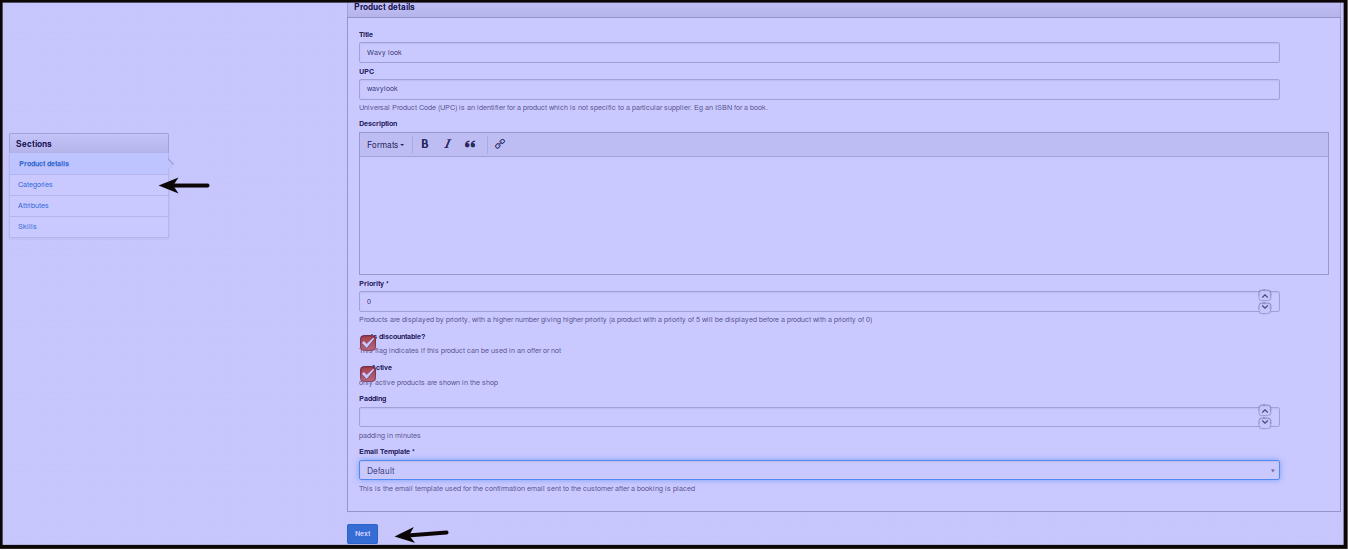
Click Next or Categories, select one category from the dropdown beside category.
-
Click Next or Attributes, input the duration or the time span to accomplish the certain service/product.
-
Click Skills to be able to add skill/s and product price.
To add another Skill, Click + beside currency.
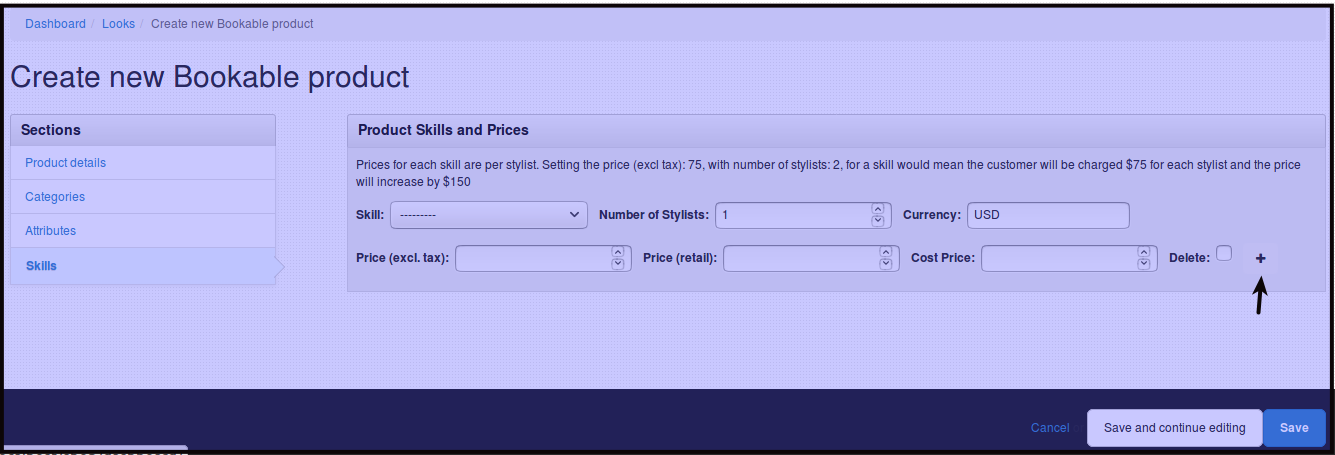
You will be directed to this page
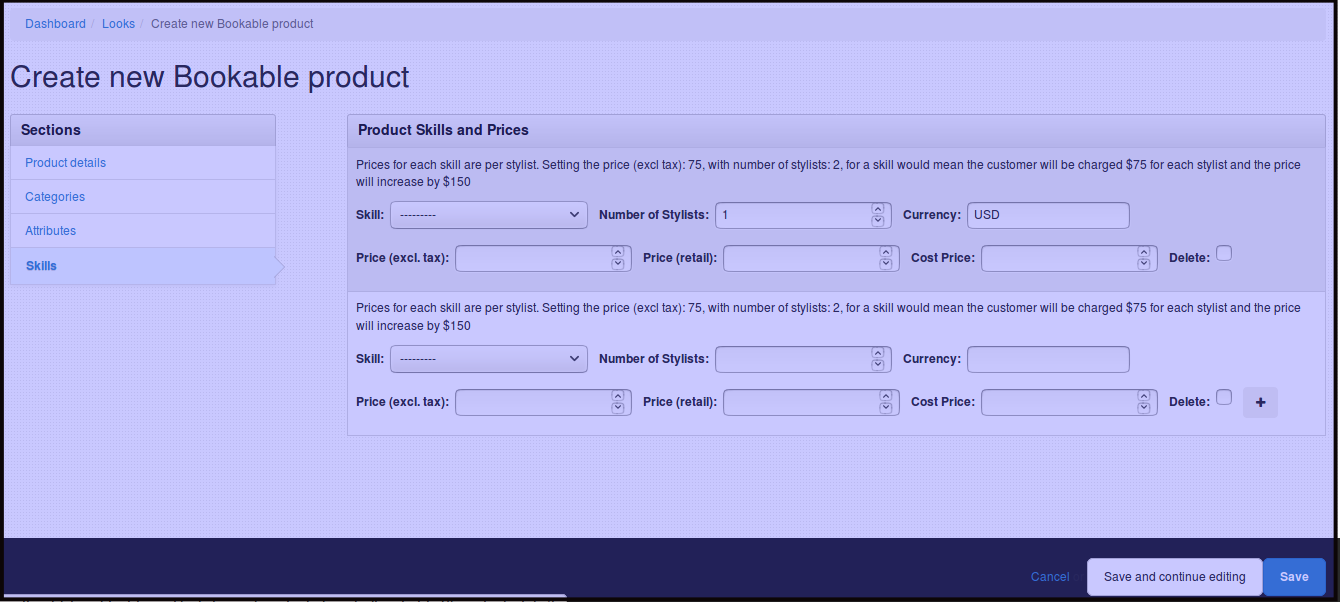
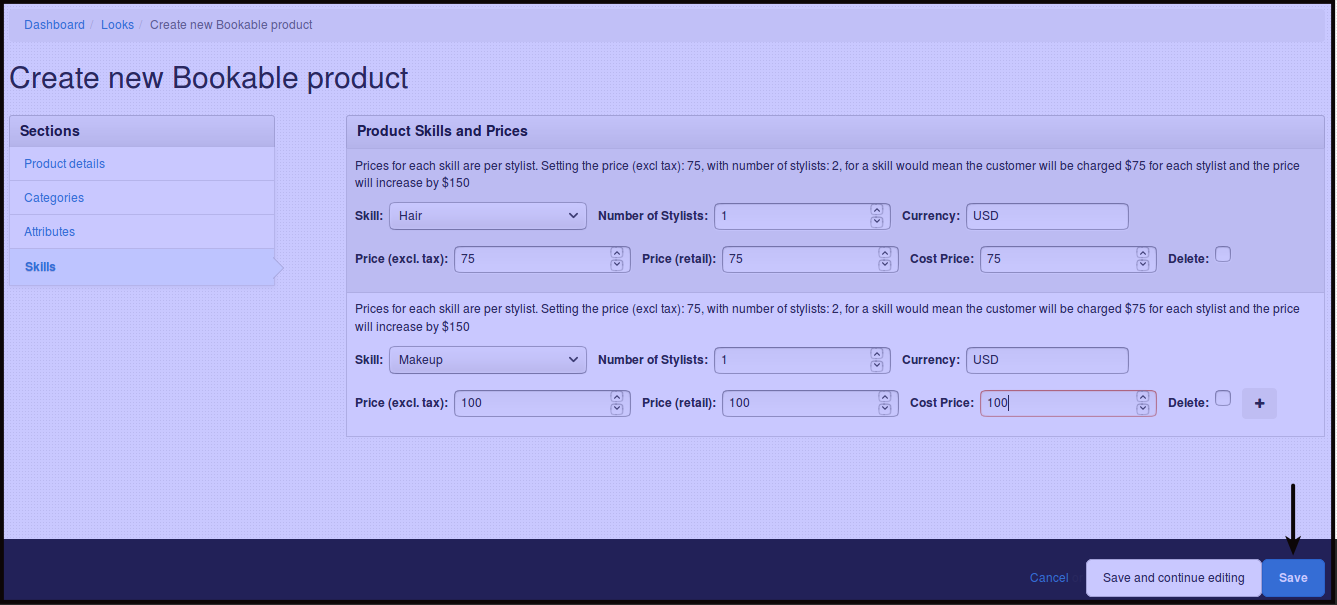
Click Skill dropdown and choose from the dropdown the skill you want for the product.
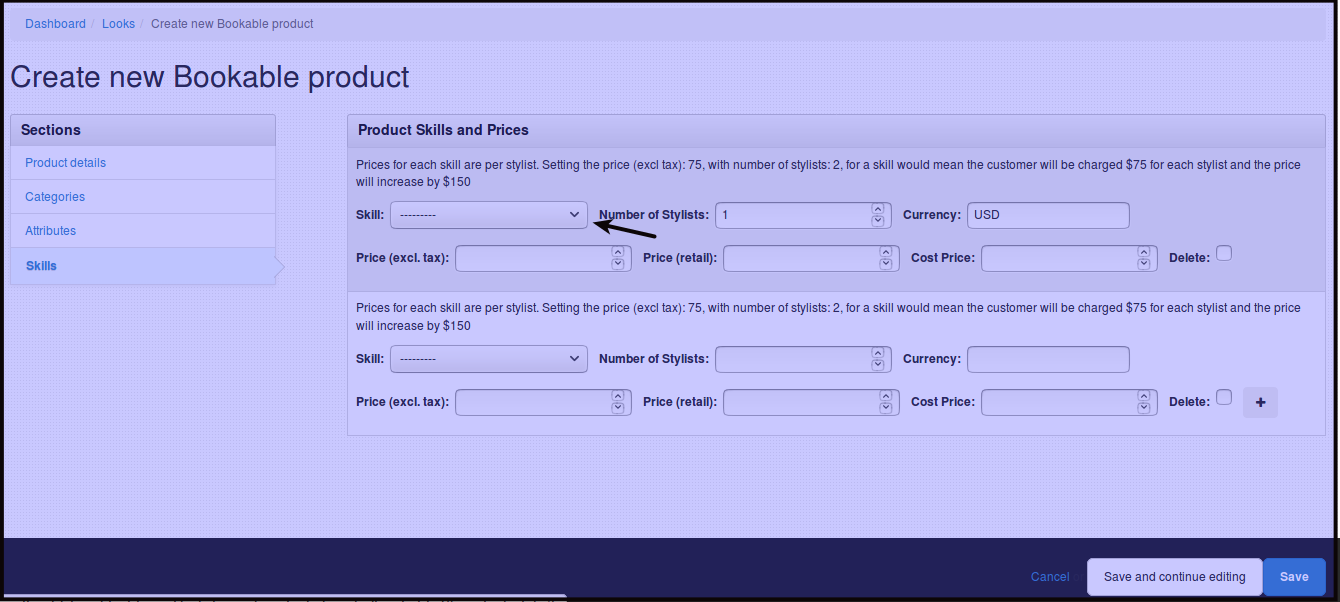
Fill out the following fields.
- Number of Stylist- this represents the number of stylist with the same skill.
- Currency- this one should be USD.
- Cost Price- product gross price (including tax).
- Price (excl tax) - product net price.
- Retail Price- means recommended price of the product, this will serve as comparison of price only with existing similar products in the market.
-
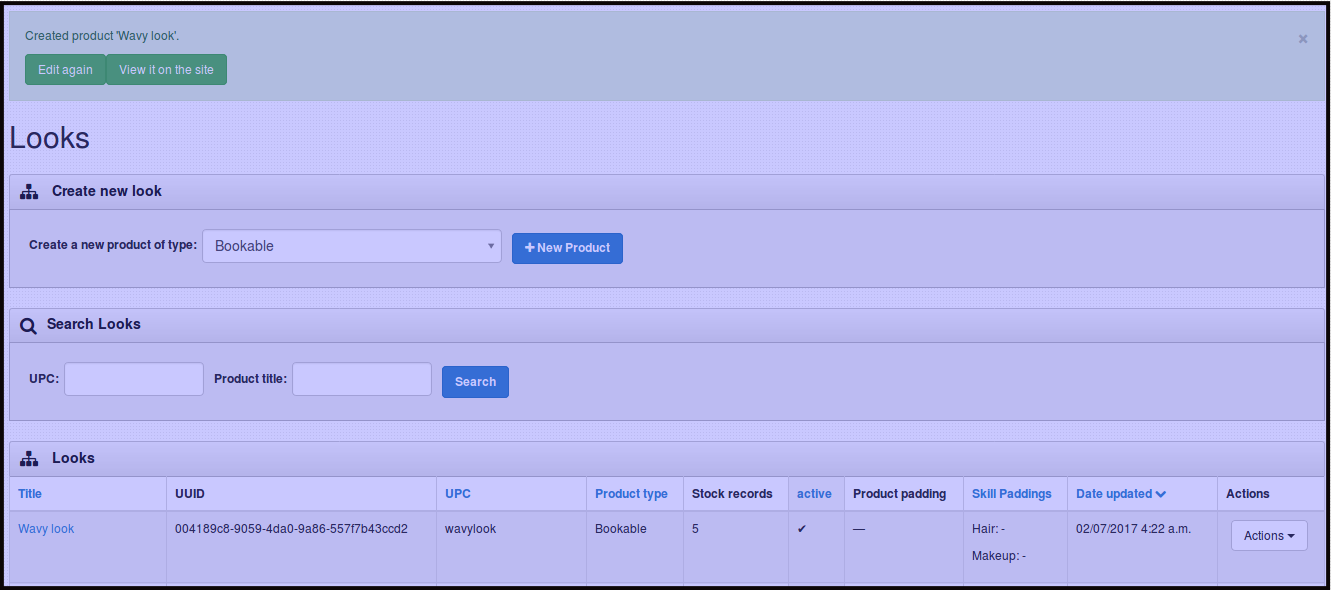
Click Save. When this is done, the new service/product will be added on the app under the category you choose where the product should be.
How to Edit Product Information
-
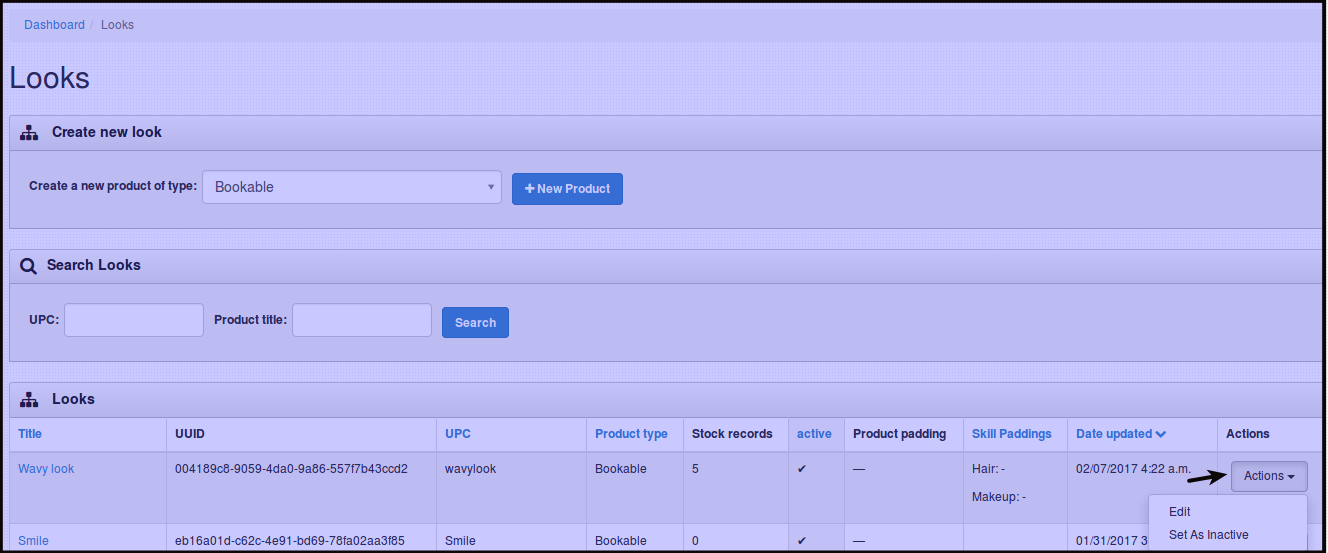
Click Product/Services then Click Looks, you will be directed to the image below.
-
Click Action beside the service/product you want to edit information.
-
Click Edit
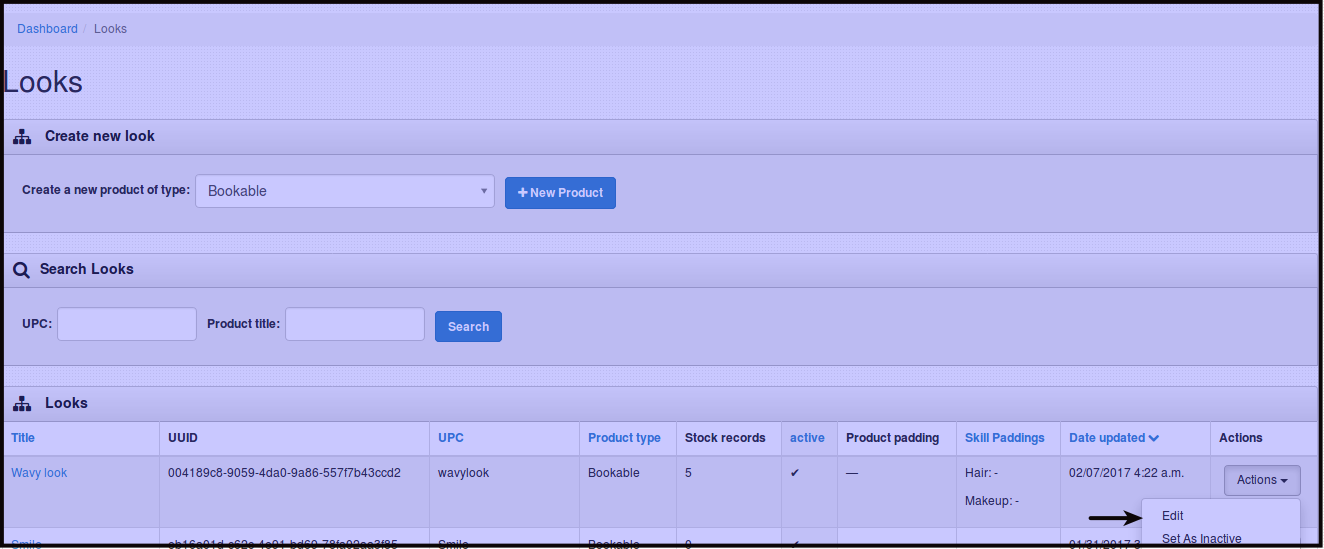
You will be directed to this page.
-
Here you can edit what section/s you want to edit. Just by clicking the section you want to edit.
Edit Product Details
Attributes (Duration of service/product)
Category (This is where the product should be under with)
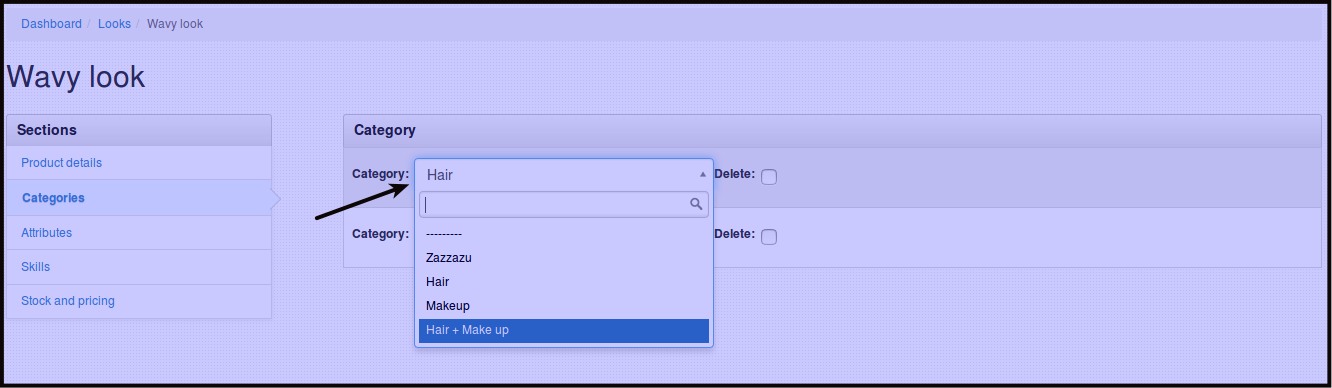
Skills and Pricing , Edit Skills, by adding or deleting the skill needed for the product. Edit Price of your product by filling out the the boxes under Product and Price.
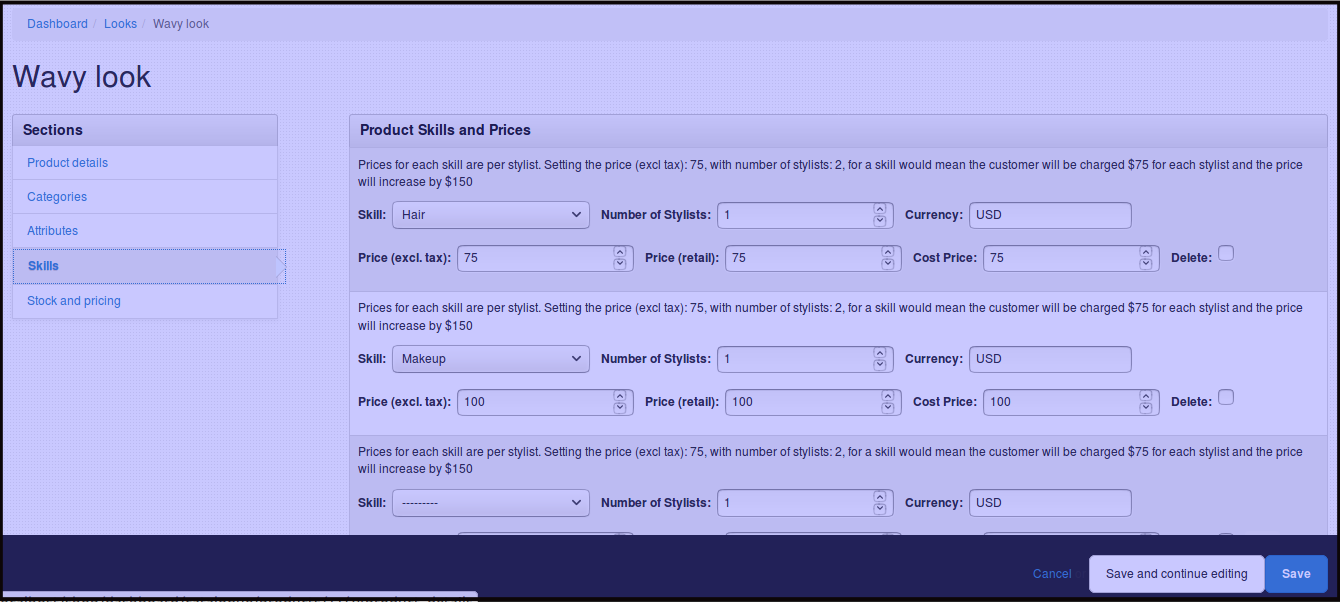
-
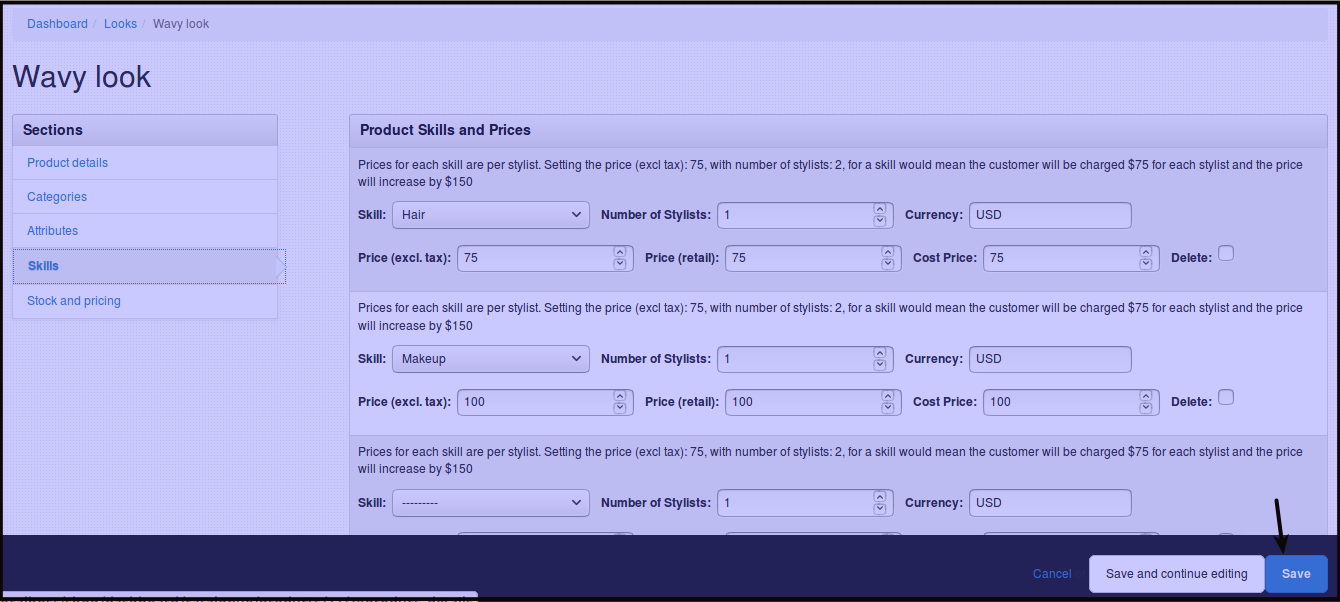
Click Save to save all the changes made on any sections edited. Once saved, all changes will be uploaded to your Zazzazu IOS app.
You will be directed to this page
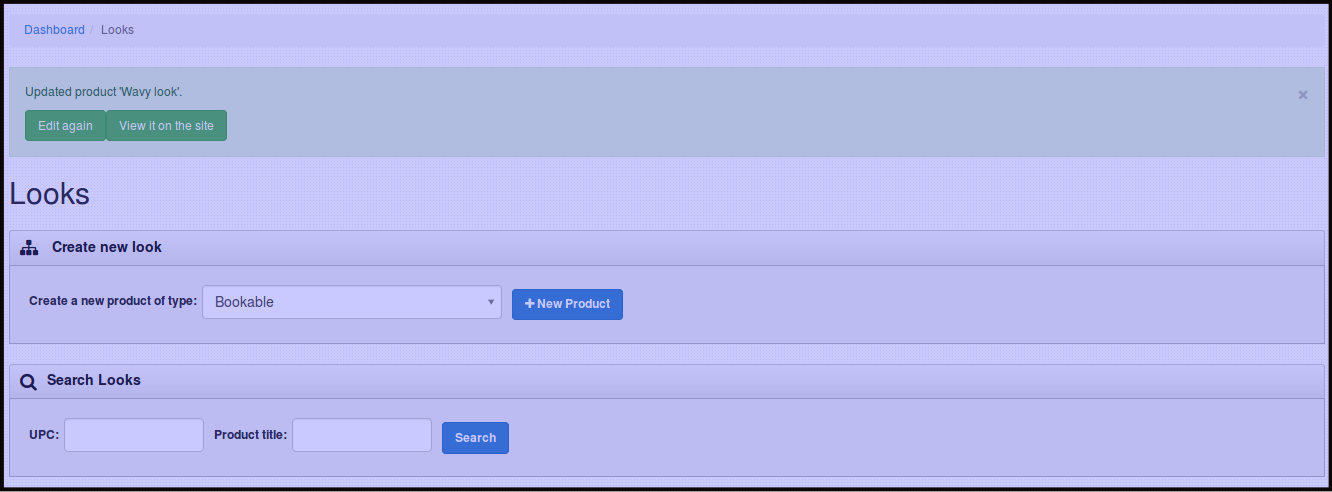
NOTE: View it on the site is for future use. Also Stock and Pricing is not to be edited, it is system generated.
How to Set Product inactive Product/Service
-
Click Products/Services then press Looks, you will be directed to the image below.
-
Click Action beside the service/product you want to Set as inactive.
-
Click Set as inactive.
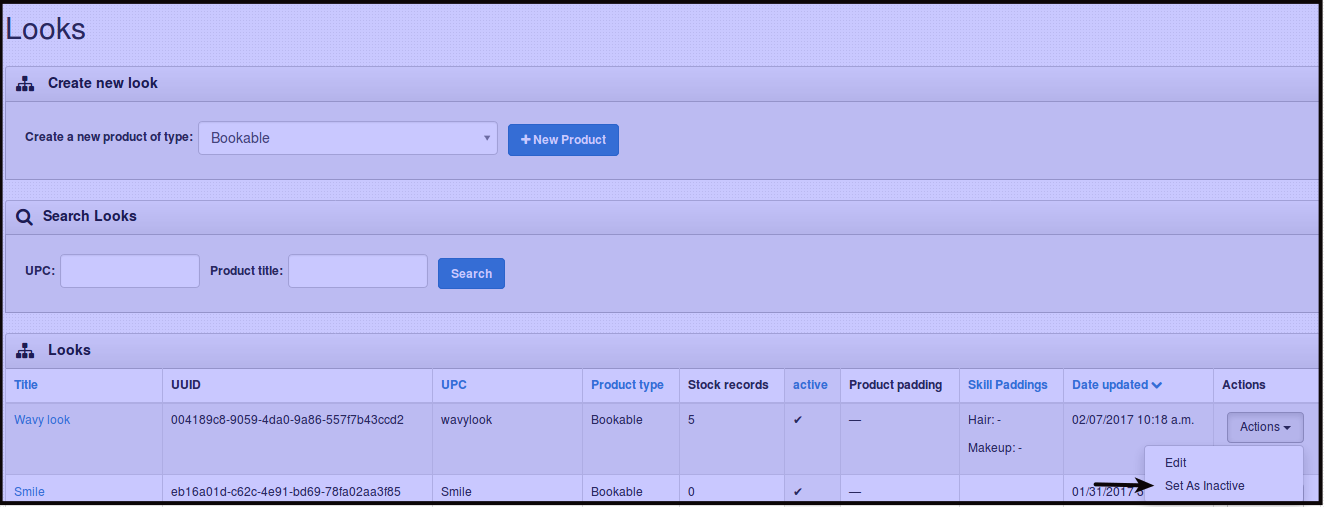
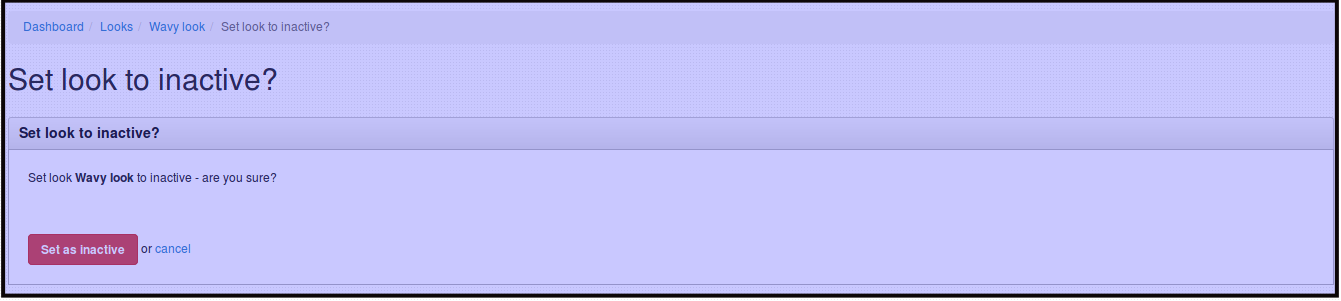
You will be directed to a confirmation page wherein you have to click Set as inactive if you want to turn the product inactive. Setting the product inactive will remove the product from the product list on the Zazzazu App.
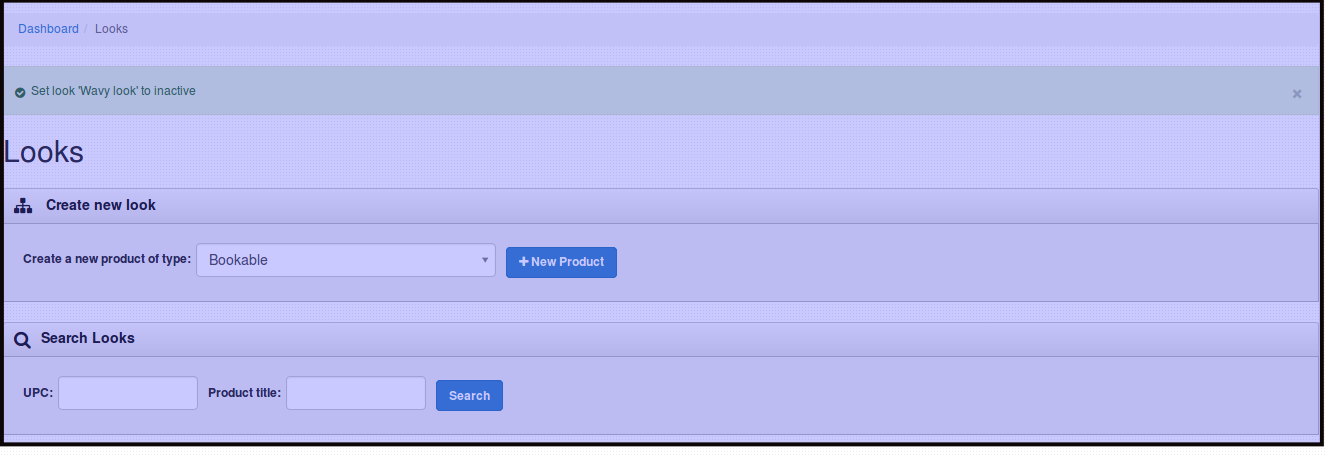
After clicking Set as inactive, the product/service will be removed from Zazzazu IOS app. You will see a confirmation like the picture below.
NOTE: You can set the product active again by editing the product and activating it on Product details.