Prerequisite
-
Install Zazzazu App.
-
Register through Facebook or Register using your email address.
How to Register through Facebook Account
-
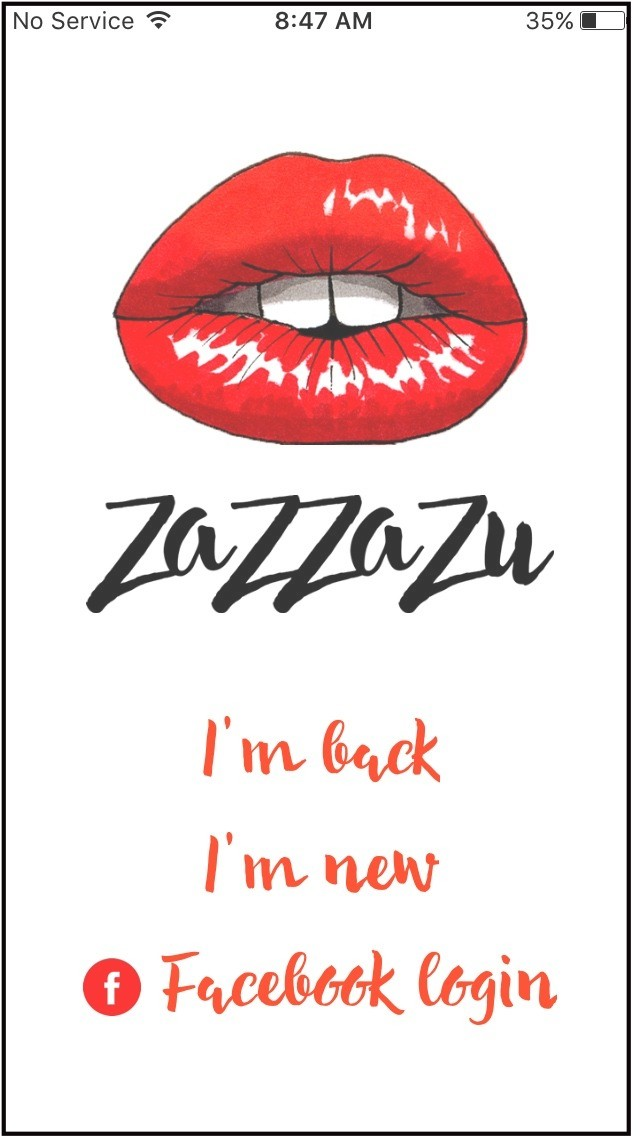
Download Zazzazu App using your IOS Phone. Then install it. Press the icon to Run Zazzazu.
-
Press LOG IN WITH FACEBOOK.
-
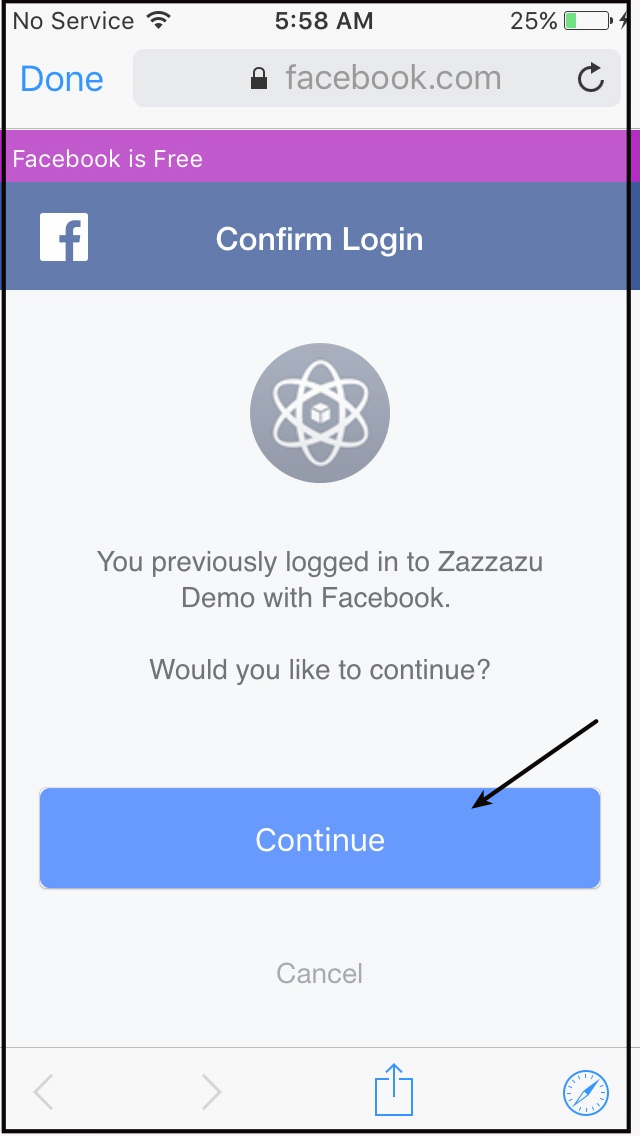
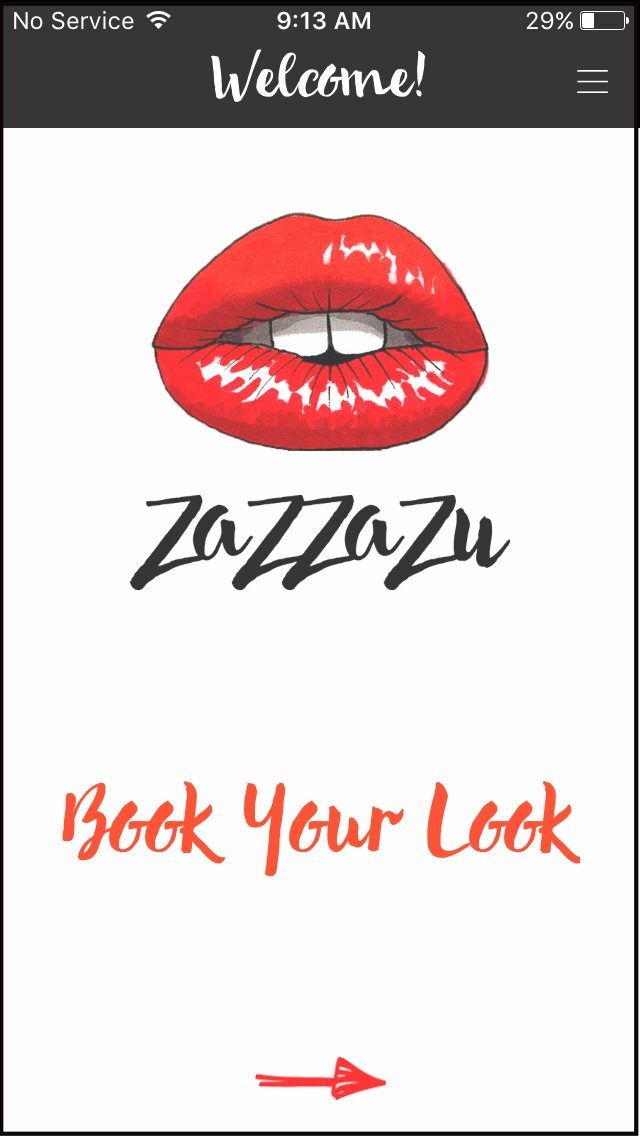
You will be directed to a page where you are asked if you will authorize Zazzazu to access your information via Facebook. Press Accept, you will be directed to a page where you are asked if you want to open the page in Zazzazu, Press Continue.
How to Register Using Email Address
-
Download Zazzazu App using your IOS Phone. Then install it.
-
Press I'm new.
-
Fill out the information needed for registration. Make sure to fill out everything and press the button that states that you agree to "Terms of Use and Privacy Policy"
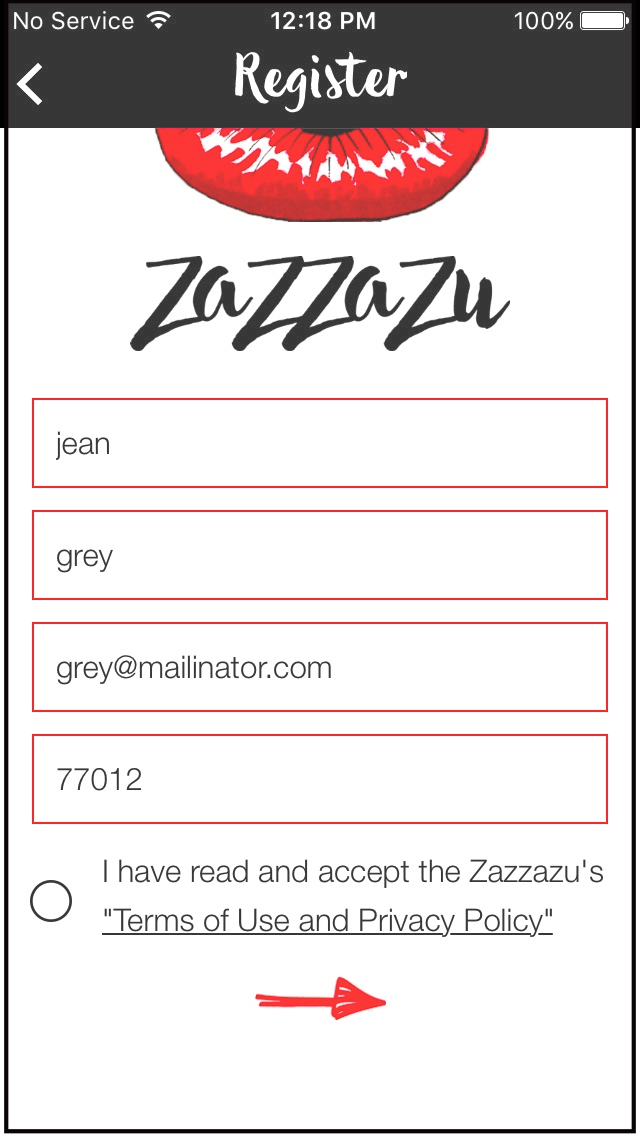
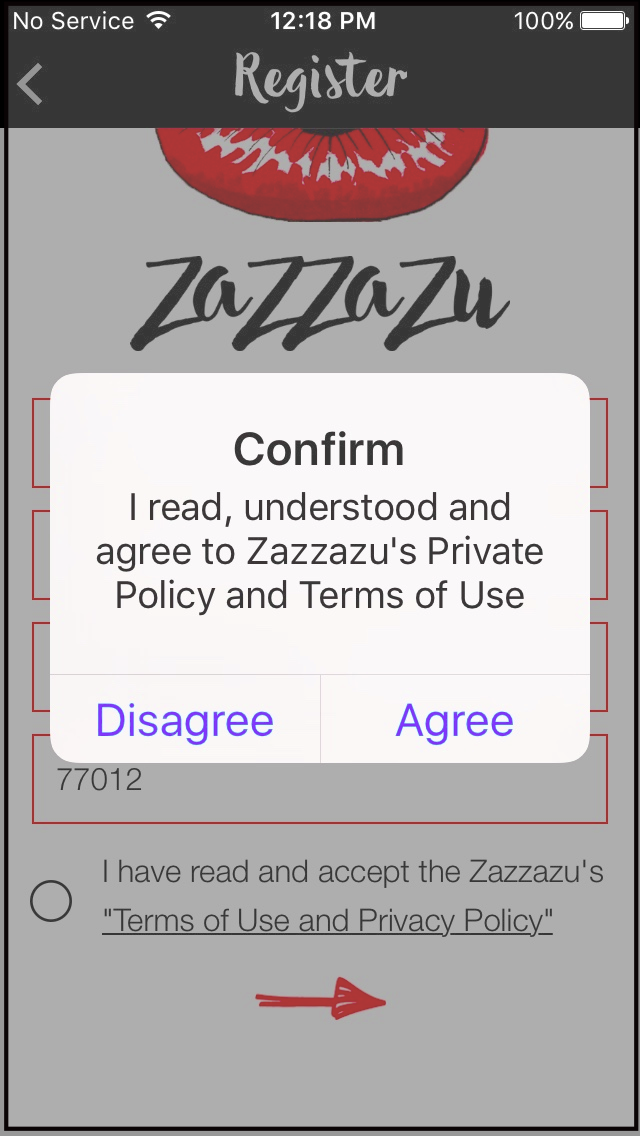
If you forgot to press the button beside the statement that you agree to Zazzazu's "Terms of Use and Privacy Policy", you will get this screen.
-
Press Red Arrow Button.
If you forgot to press the button beside the statement that you agree to Zazzazu's "Terms of Use and Privacy Policy", you will get this screen.
-
There are 2 output that will be seen on your IOS App. If you are under service coverage you will see the image below.
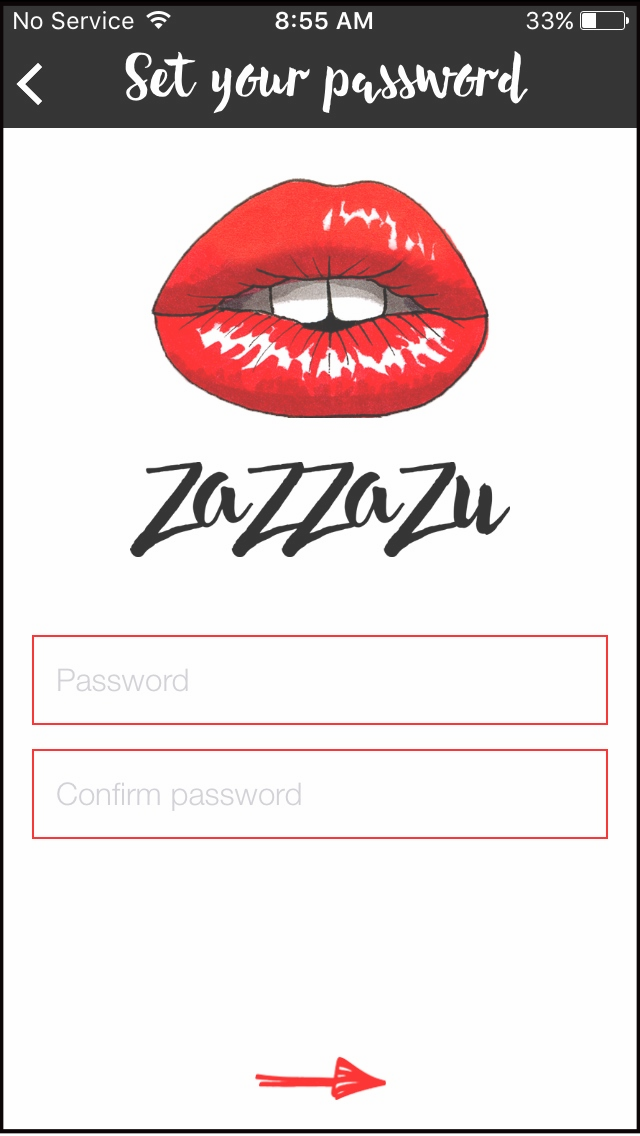
If you are out of service coverage, you will see the image below.
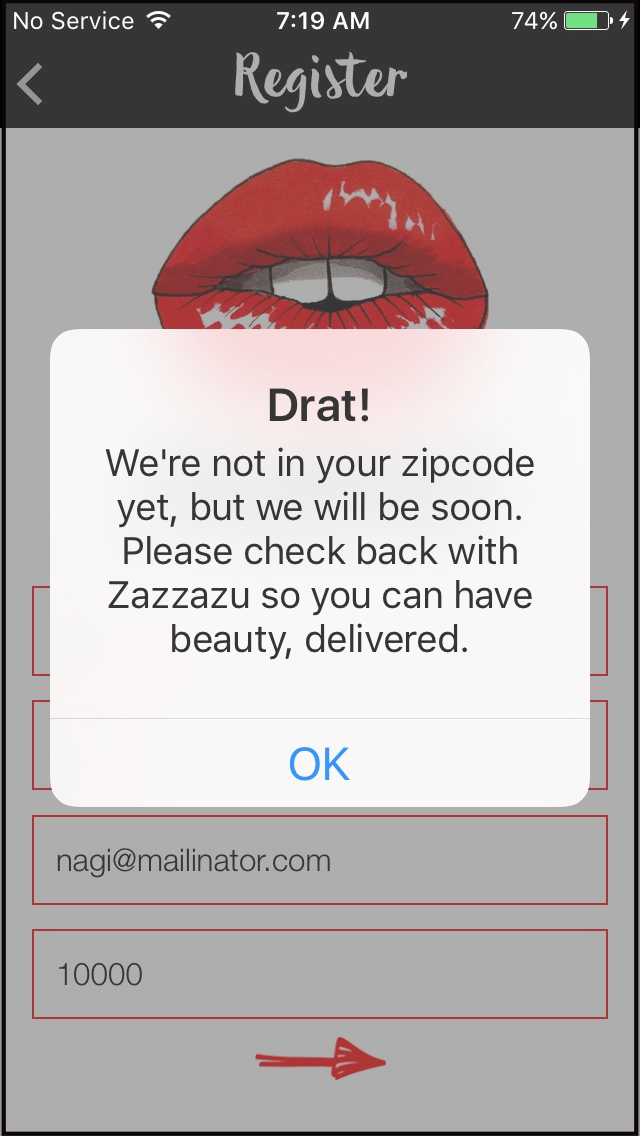
- Note: If the registration is successful you will see the landing page.
- Note: If the registration is successful you will see the landing page.
Understanding Zazzazu Menu
-
Sign In to Zazzazu App by pressing I'm back.
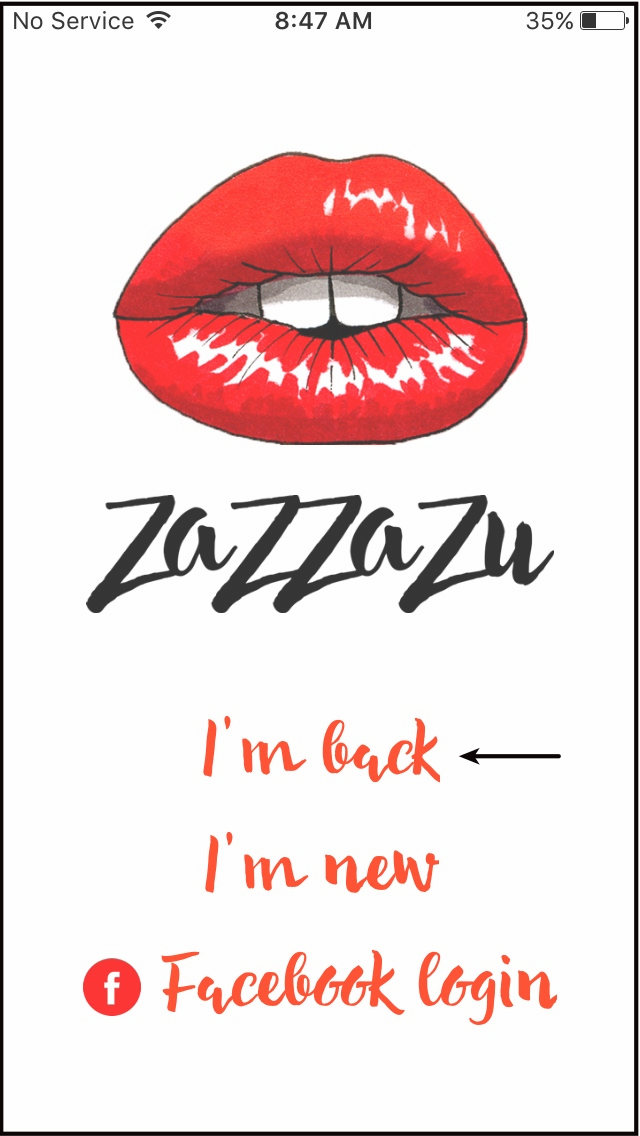
You will be directed to this page.
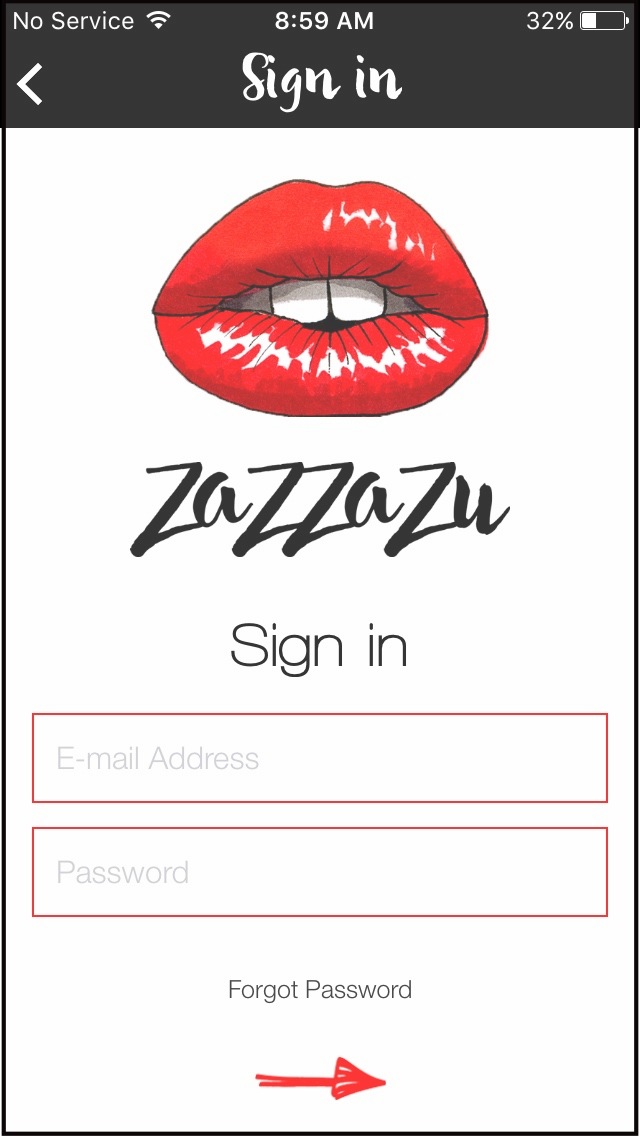
-
Press Red Arrow Button.
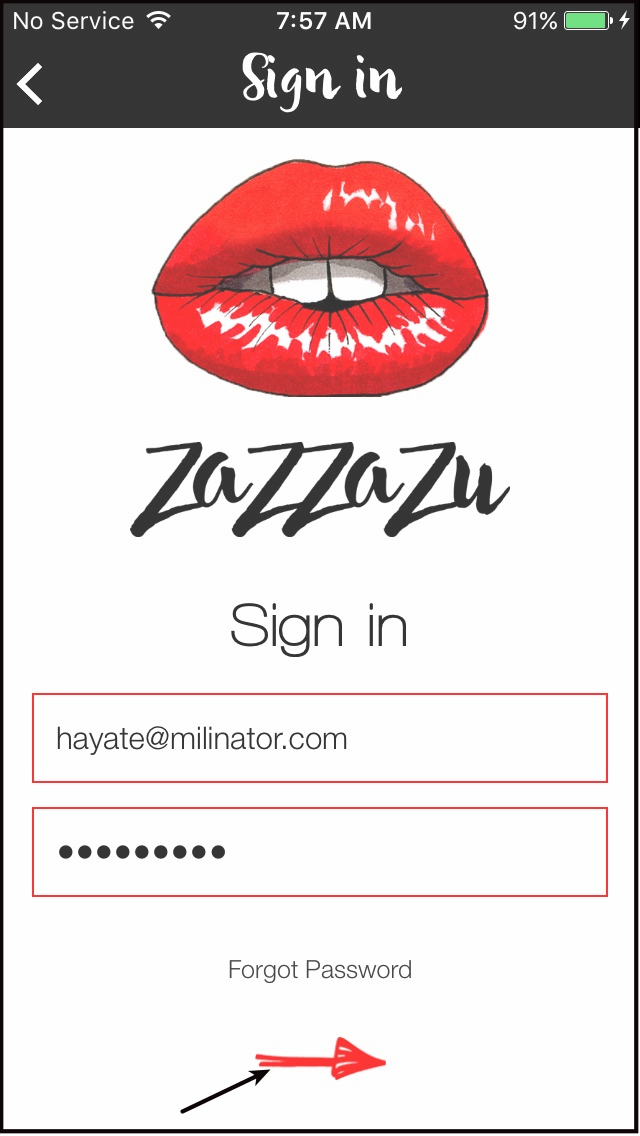
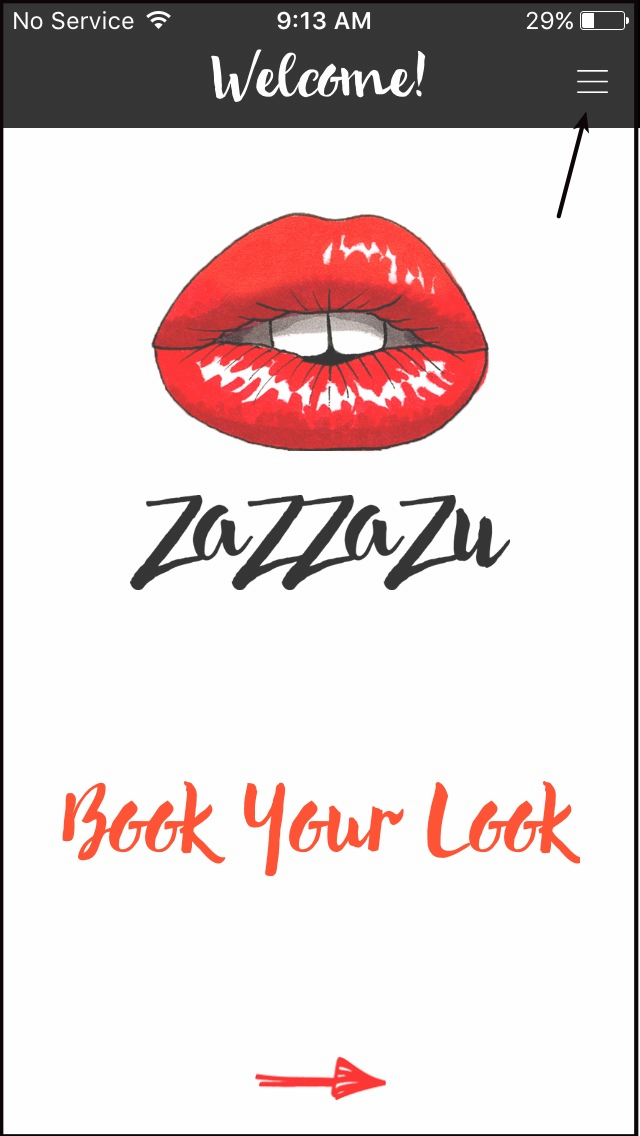
You will be directed to this page.
-
Press = on the upper right hand corner of the app.
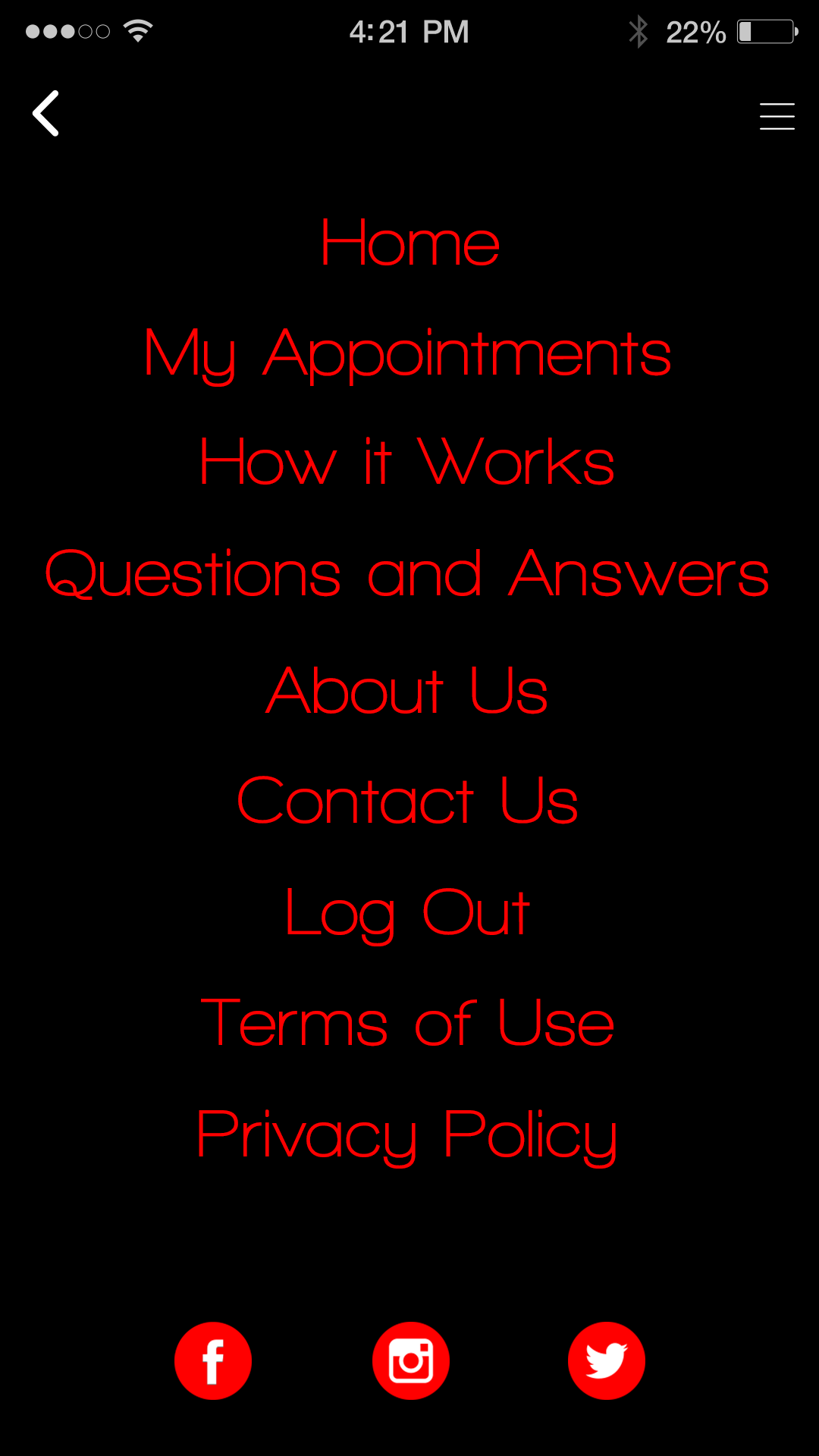
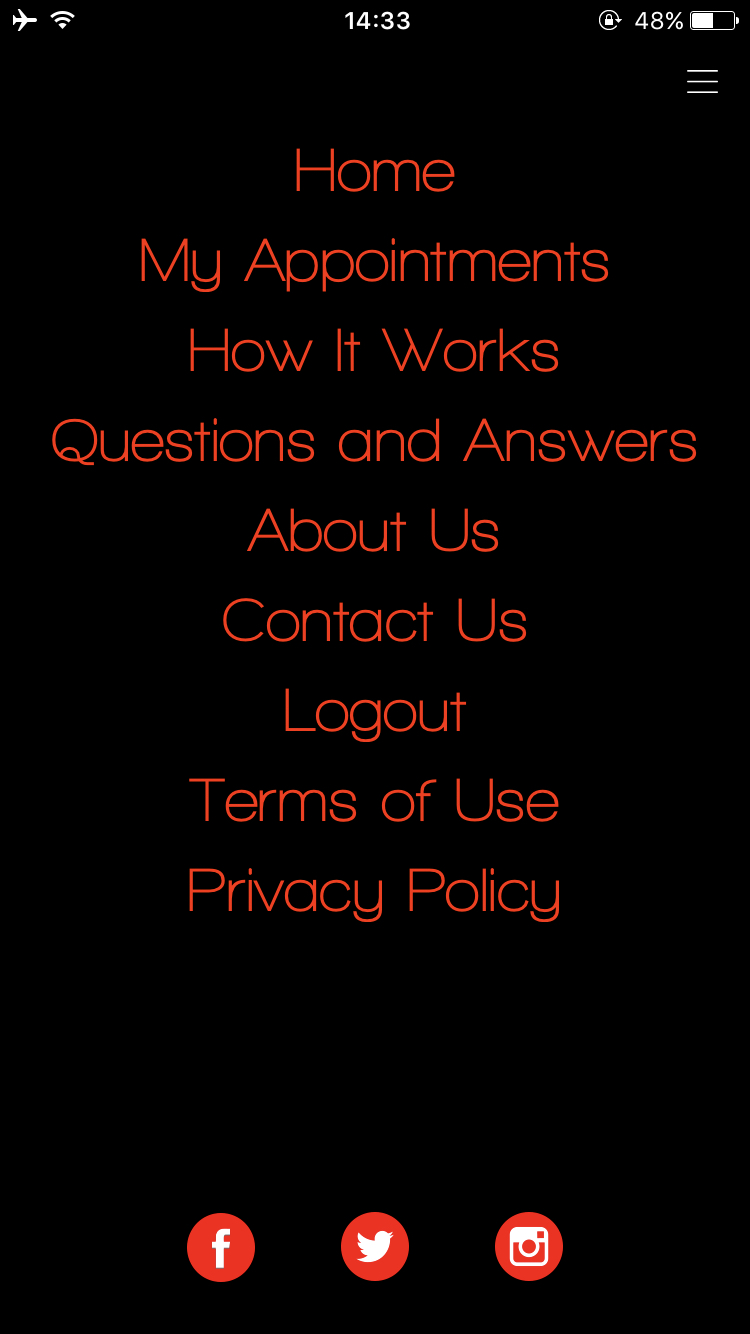
Here you will see the Menu of Zazzazu App.
-
Menu Content.
- My Appointments - this is a list of your Zazzazu Appointments.
- How it Works - you will see here how Zazzazu works
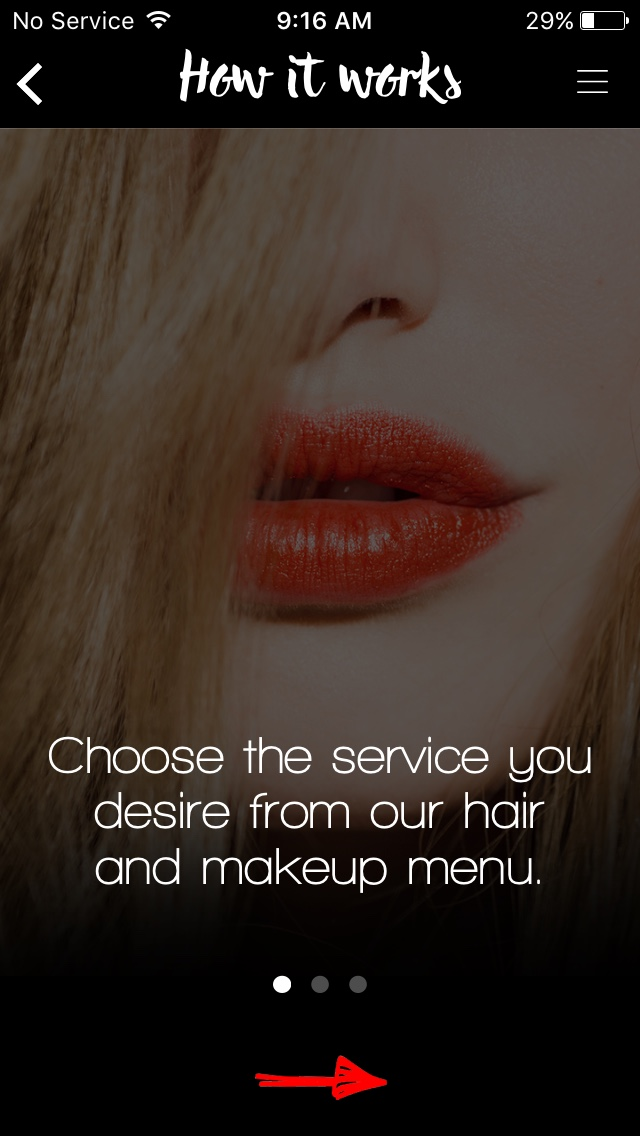
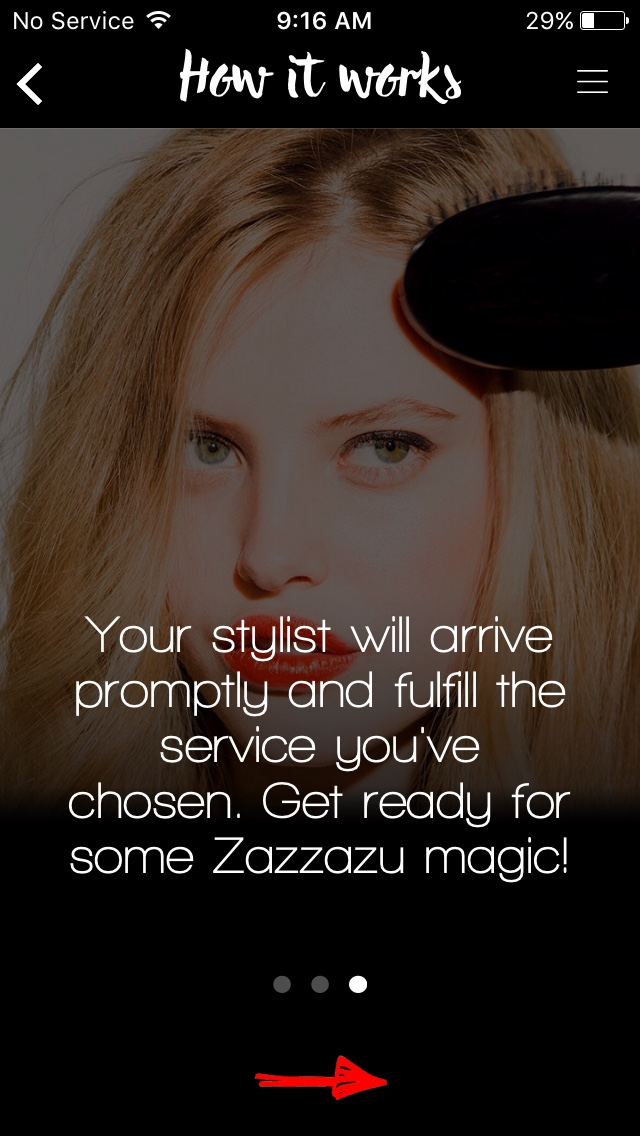
Press the Red Arrown Button to read how it works.
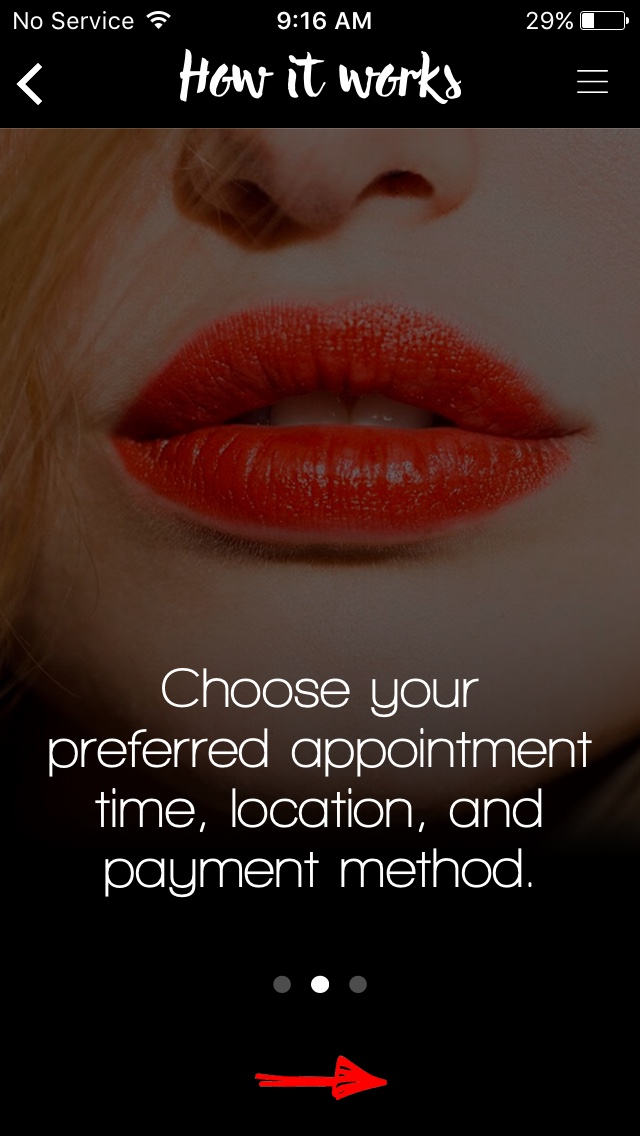
Press the Red Arrown Button to read how it works.
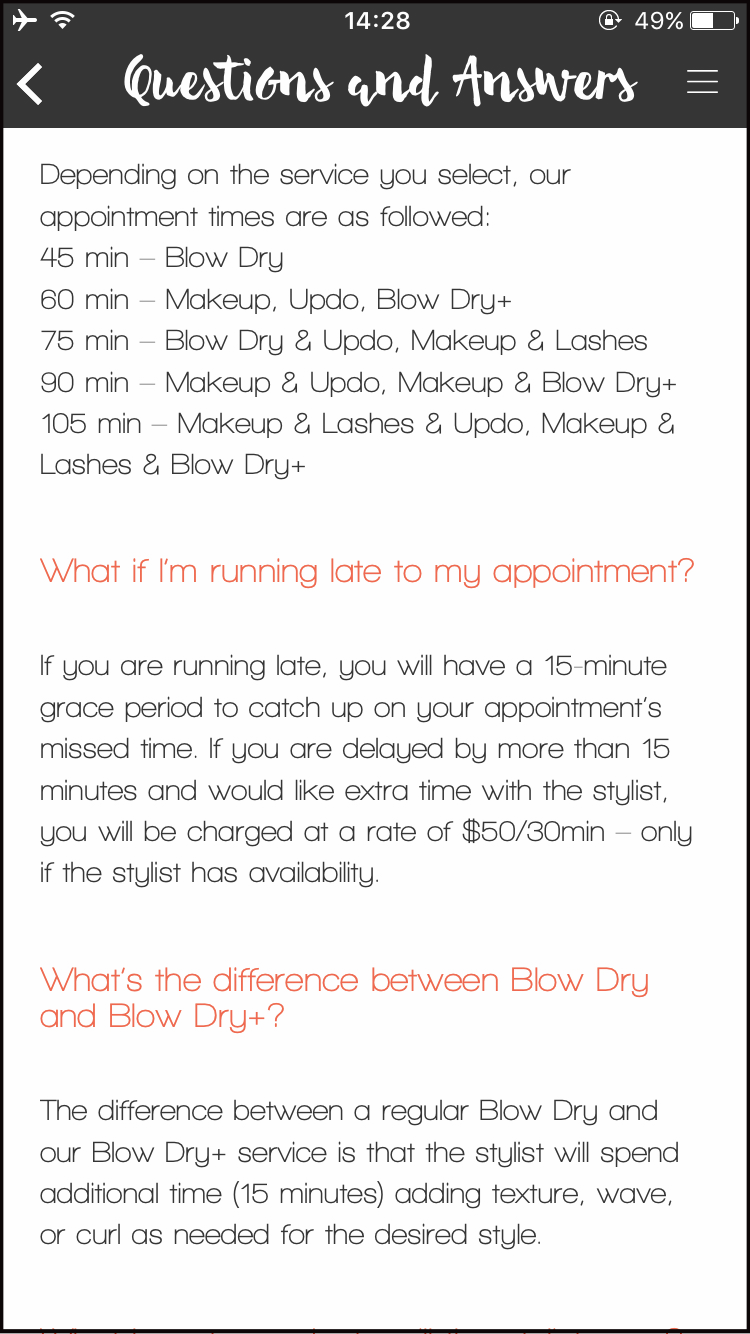
- Questions and Answers - this is where you can read all the facts about Zazzazu.
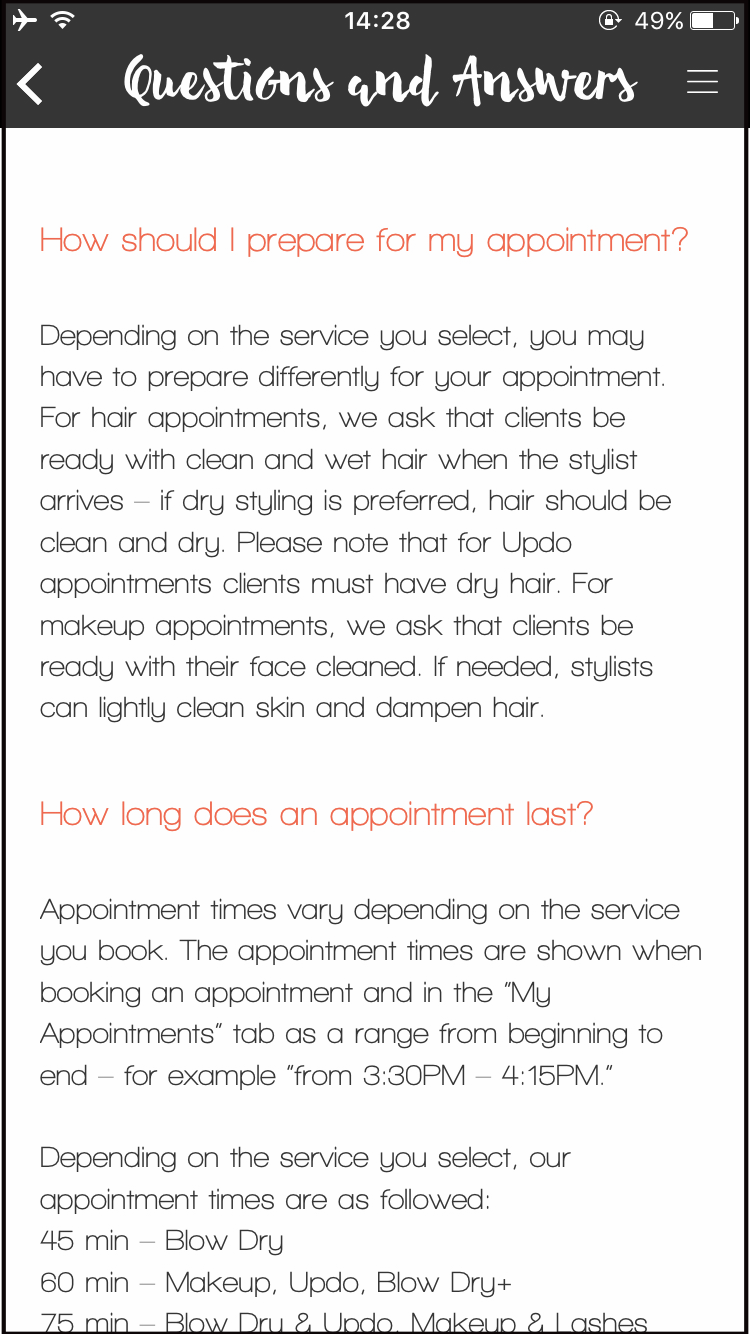
Browse down to be able to see the other Question and Answers.
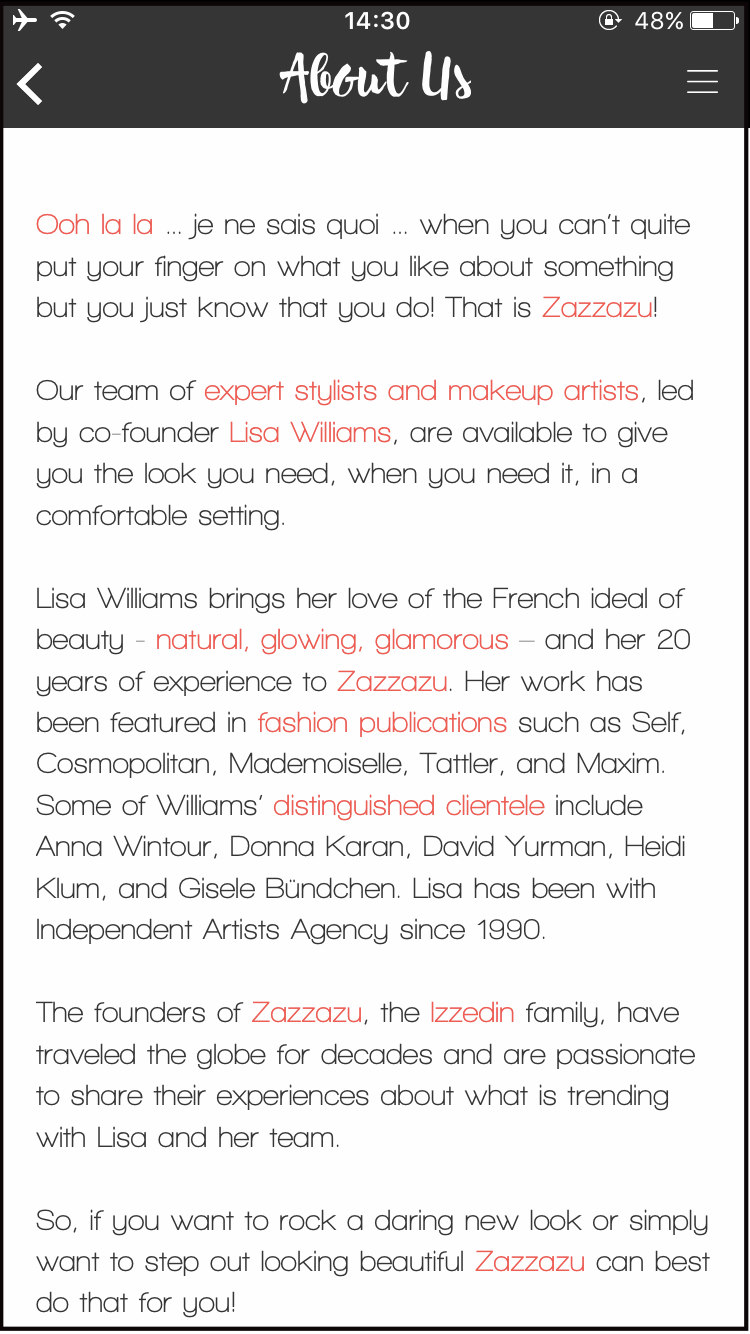
- About Us - this is where you can see facts about Zazzazu history
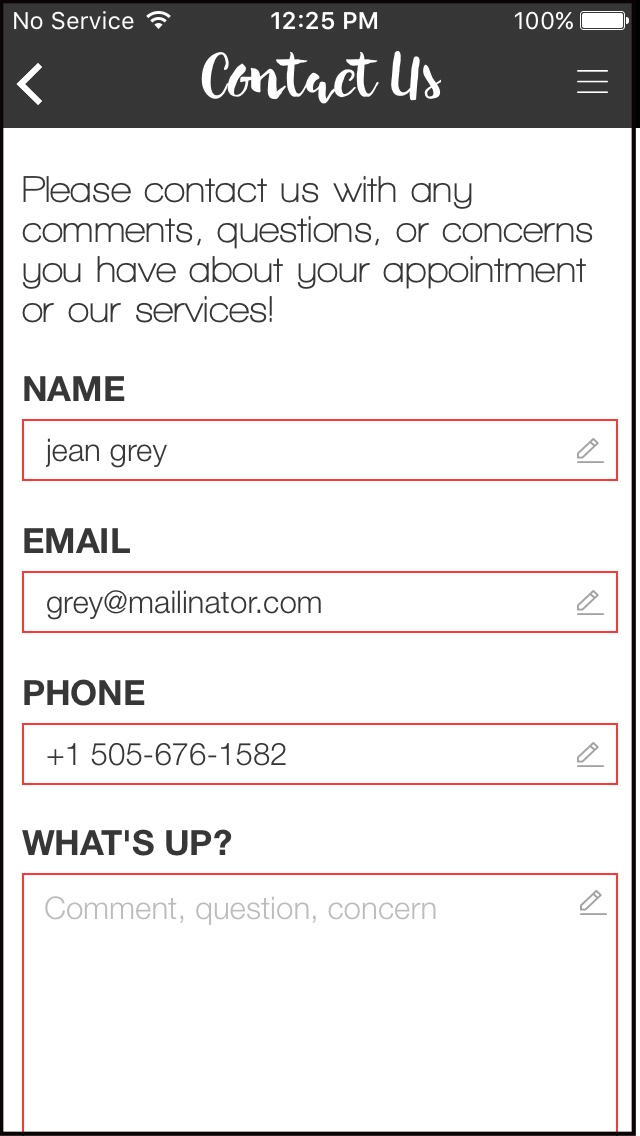
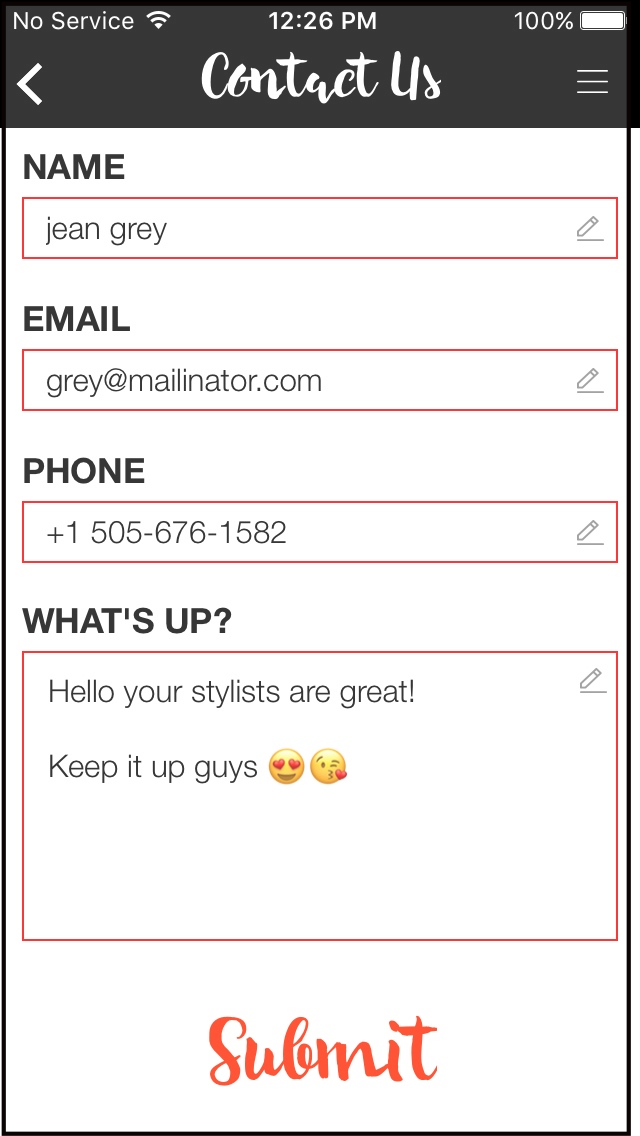
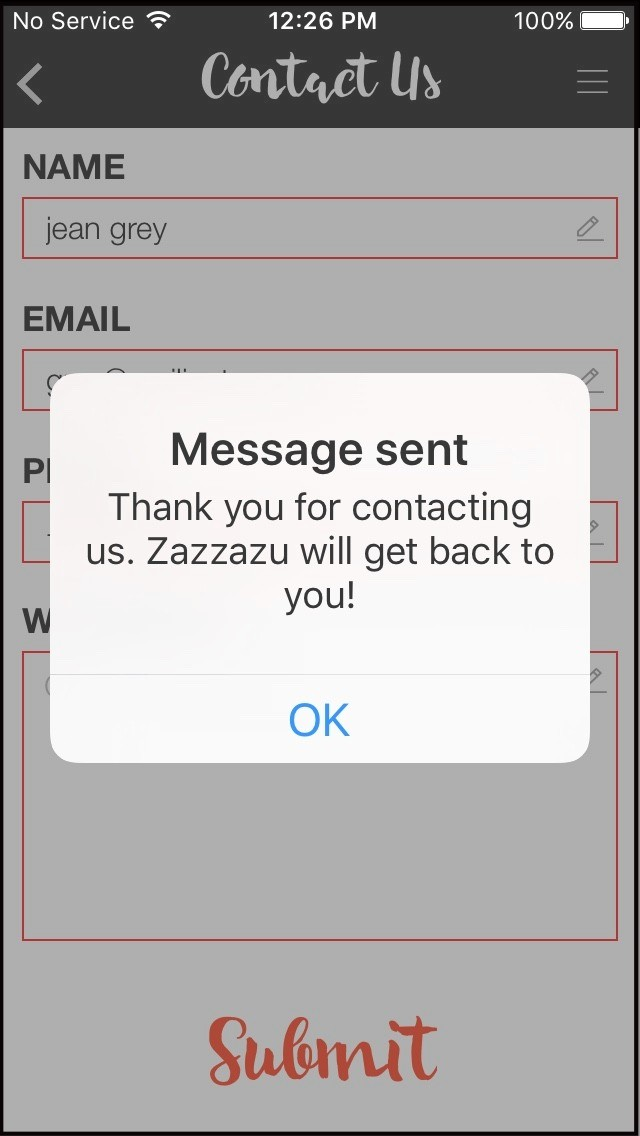
- Contact Us - this is where you can email Zazzazu Admin about your booked appointment/s or if you have comments about the app or the stylist/s.
- LOGOUT - this is where you can logout from the app.
- My Appointments - this is a list of your Zazzazu Appointments.
How to Book an Appointment
-
Log in on the app.
-
Press Book Your Look or Press the Red Arrow Button.
-
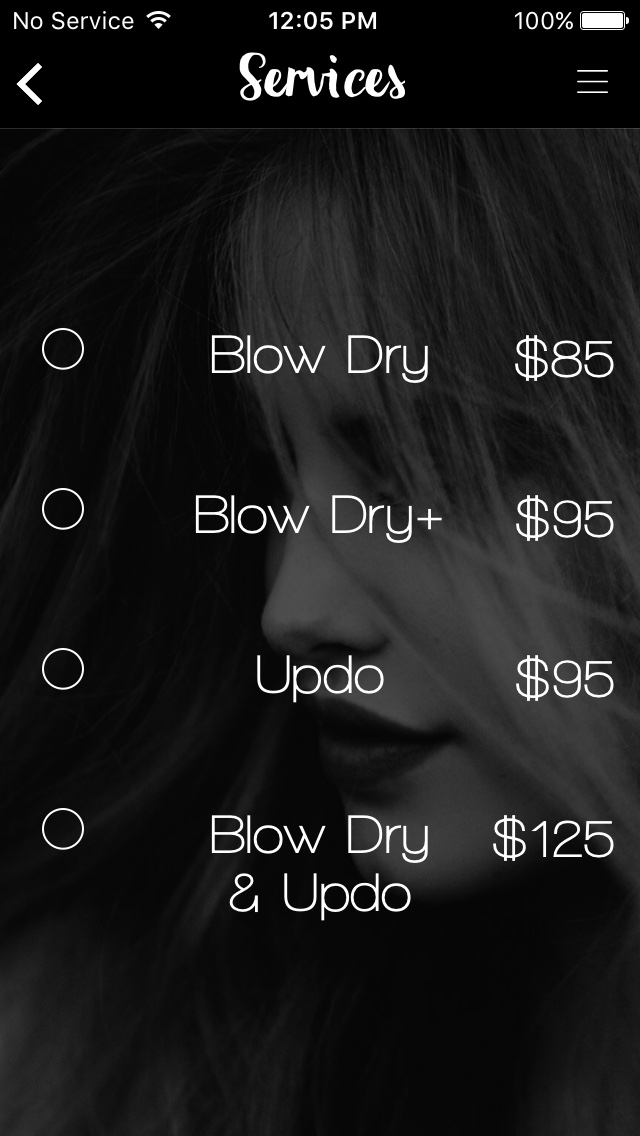
You will be directed to Services category. This is where you can choose what category you want to book.
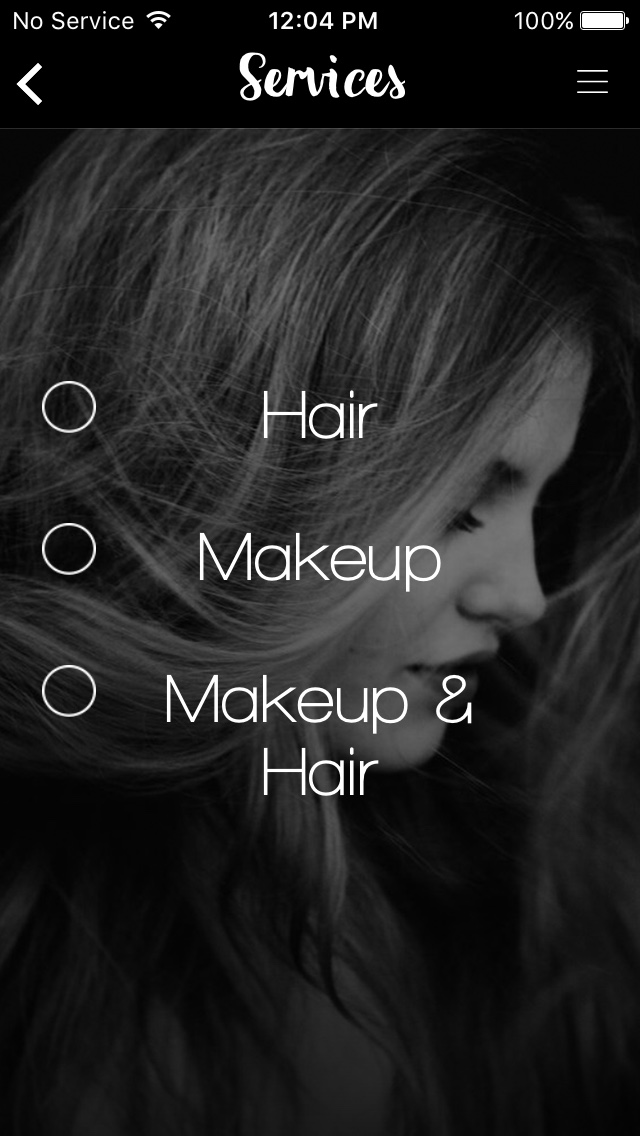
By pressing Hair Category, you will get the following services.
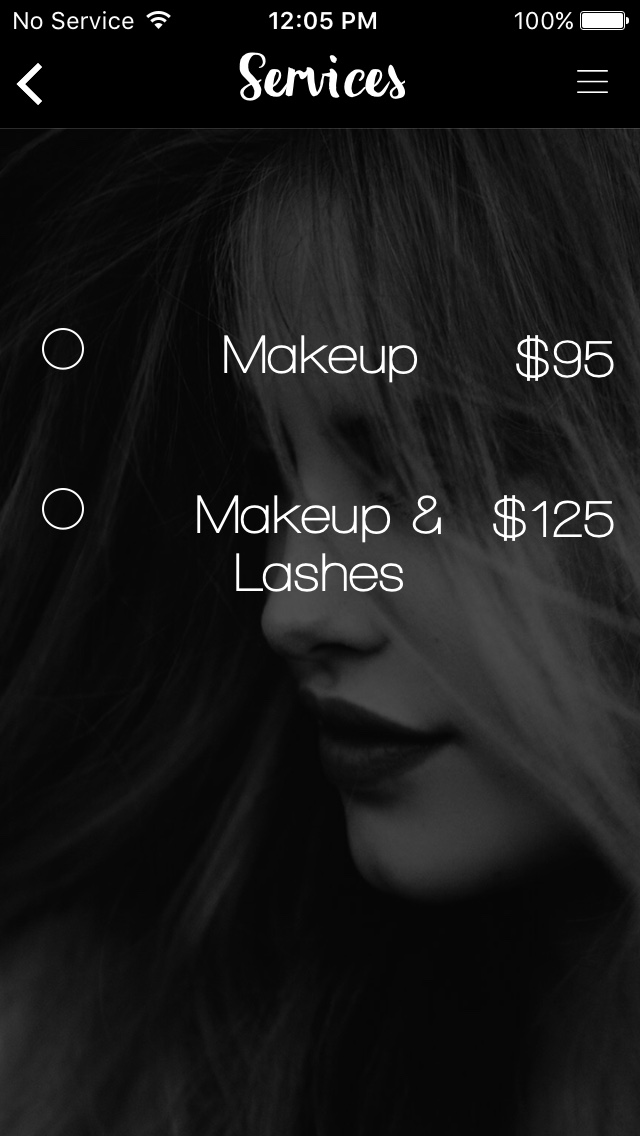
By pressing Makeup Category, you will get the following services.
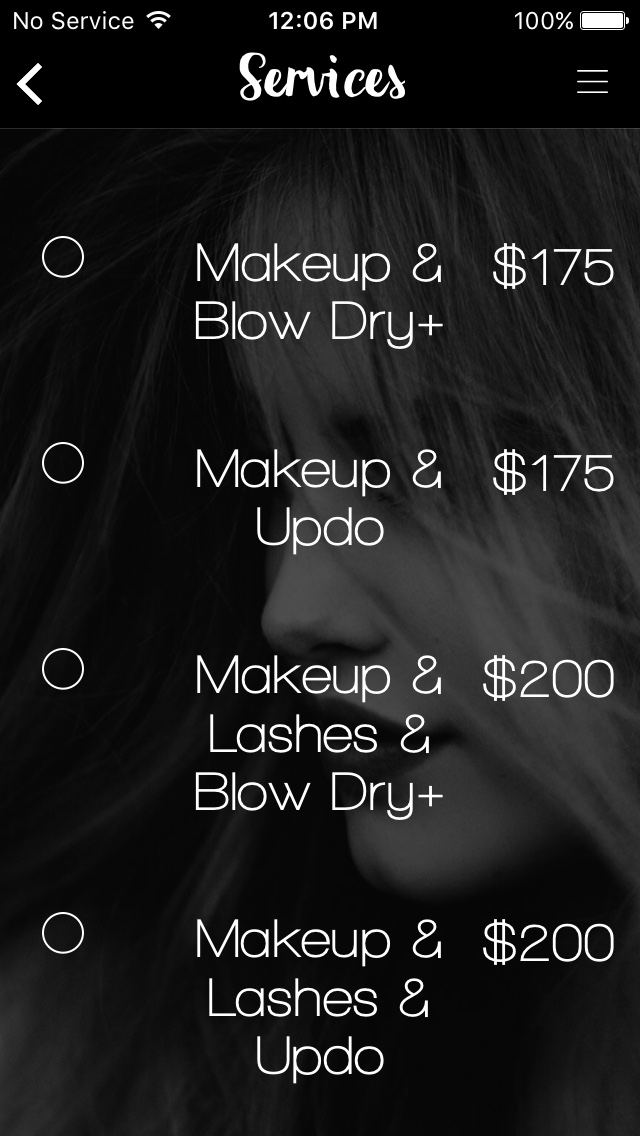
By pressing Makeup & Hair Category, you will get the following services.
-
Choose the service you want to book by pressing the small circle beside the service. You will be directed to a Calendar, Now Choose a Date you want the style to be delivered by pressing the date on the calendar or swiping the calendar from left to right to see the next month's dates to choose from. You can also press the linked month name on the top to see the next month's dates.
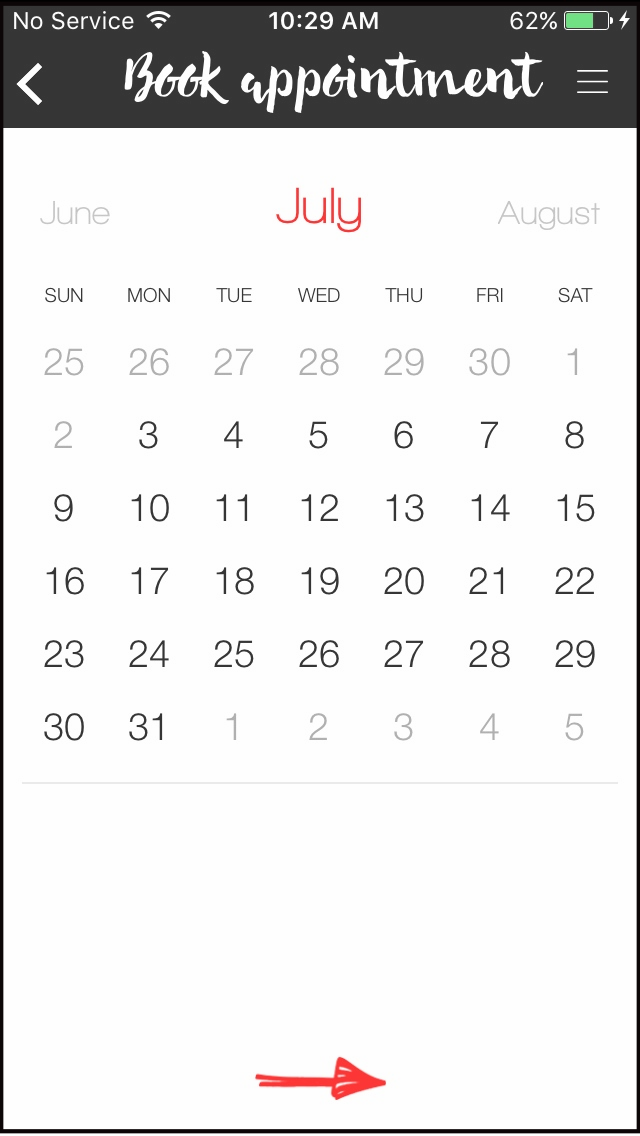
NOTE: Calendar will only offer up to 90 days advance booking. Else you will get a pop-up message indicating that Zazzazu only caters 90 days advance appointment.
-
Press the Red Arrow Button, you will be directed to a page where you can see all the available time slots on the system.
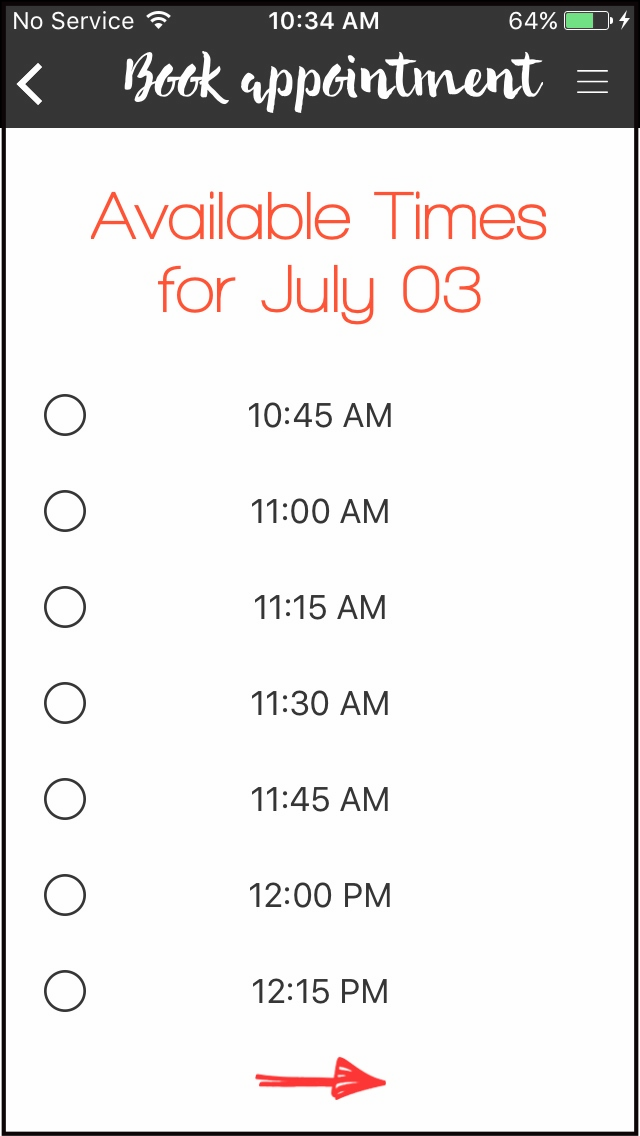
-
Press the small circle beside the timeslot you want to book. You will be directed to this page where you will see the details of your booking appointment. Here you will see the Style you are ordering, the appointment Date and Time and How much it will be, gratuity included.
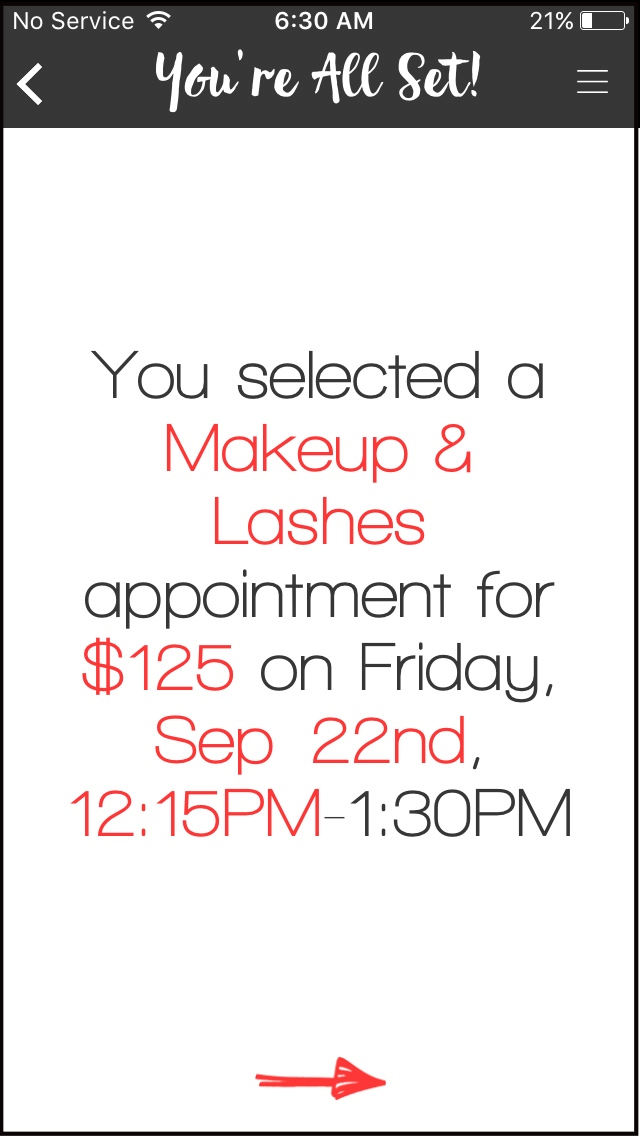
-
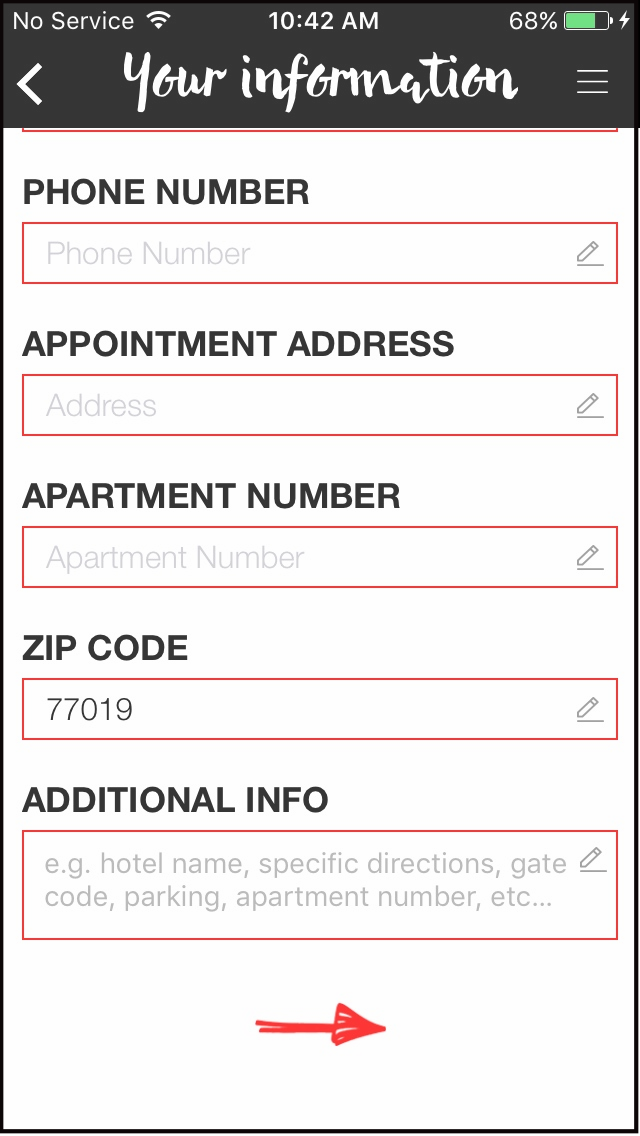
Press Red Arrow Button to be able to see your information details. Here you will need to fillout the following information: Email (for Facebook users only), Phone number, Appointment Address, Apartment address and additional information about your hair or directions.
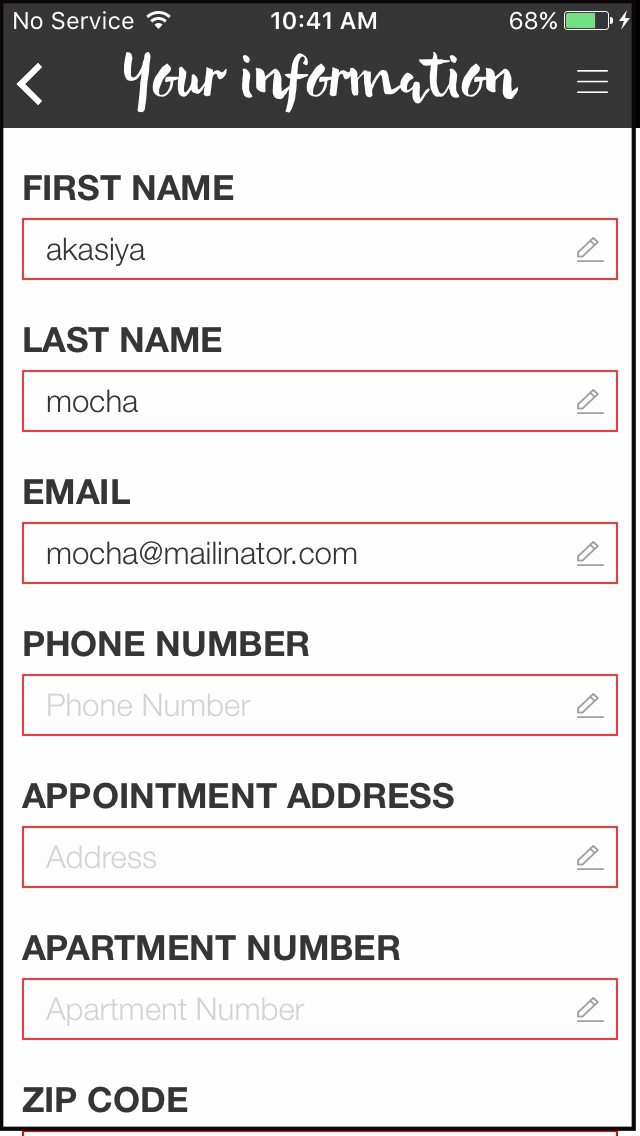
Scroll down by swiping downwards to see all the details that needs to be filled out if needed.
-
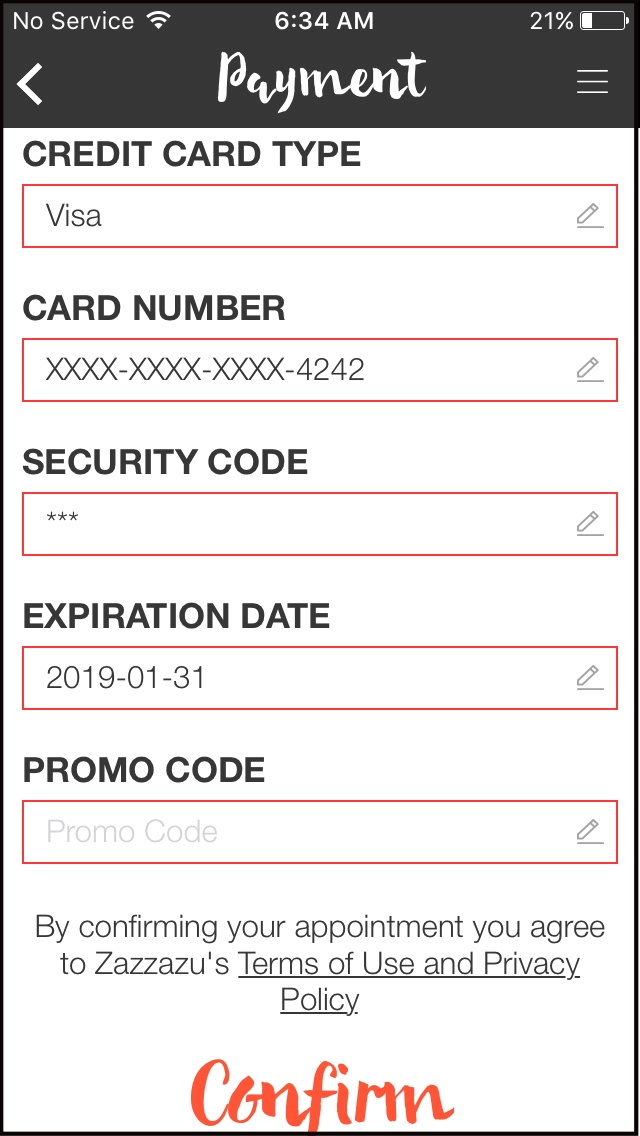
Press the Red Arrow Button, to confirm the information. You will be directed to Payment section where you will need to Enter your credited Card details and the Promo Code for style you are ordering if there are ongoing promotions you want to avail. Press Confirm.
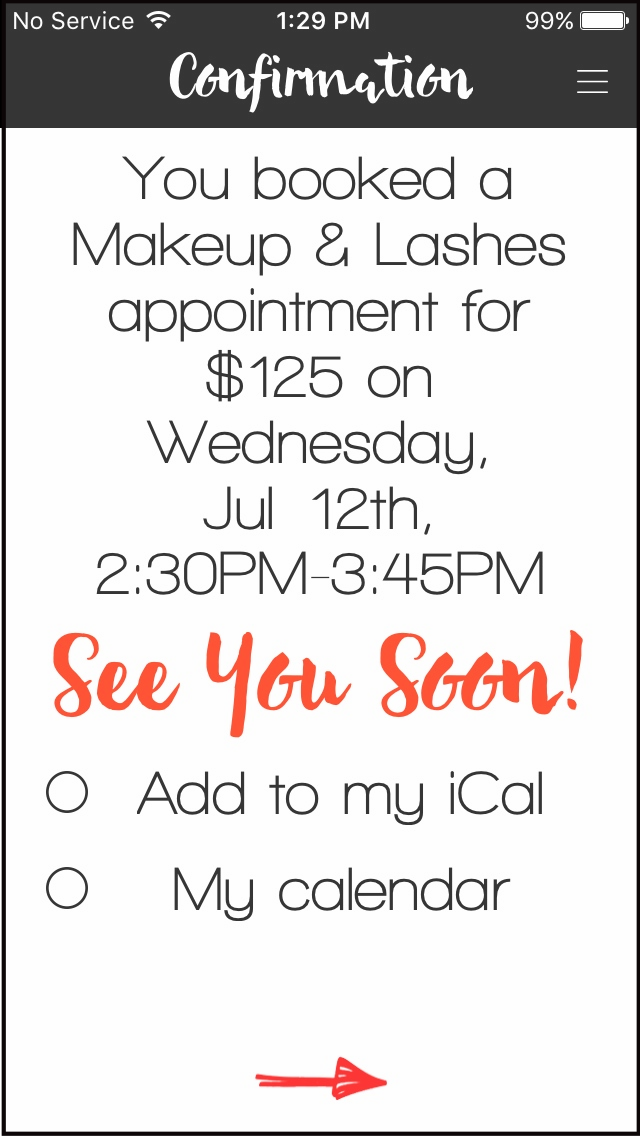
Your booking is now Successful, you will see this page.
How to View Your Calendar
-
Sign In to Zazzazu App.
You will be directed to this page.
-
Enter your log in information, then press the Red Arrow Button.
You will be directed to this page.
-
Press = on the upper right hand corner of the app.
Here you will see the Menu of Zazzazu App.
-
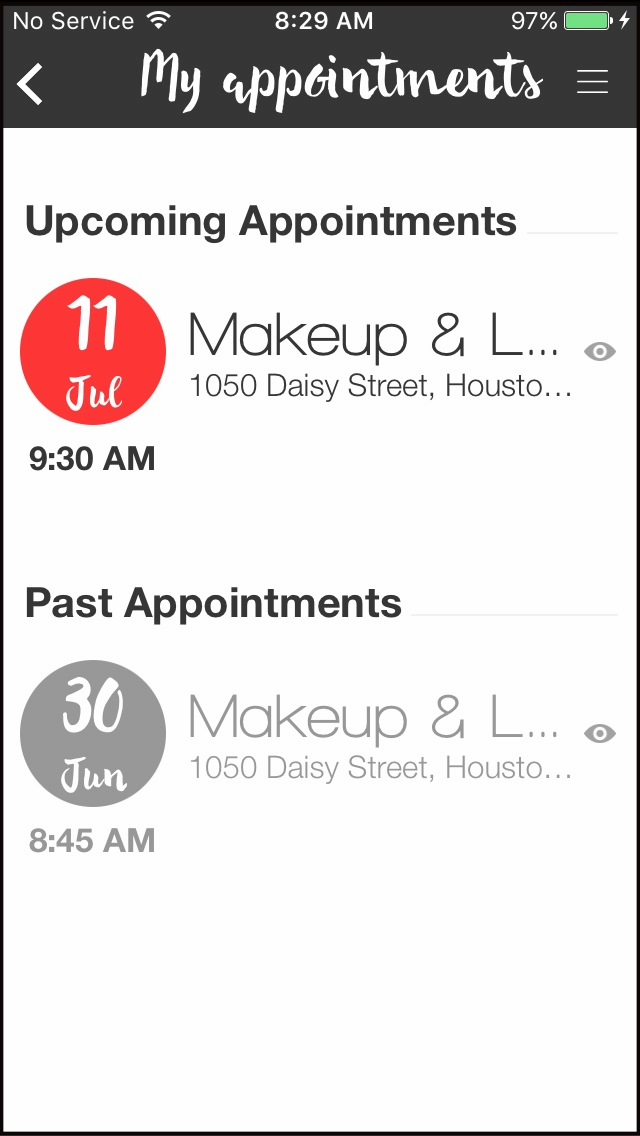
Press My Appointments. You will be directed to this page.
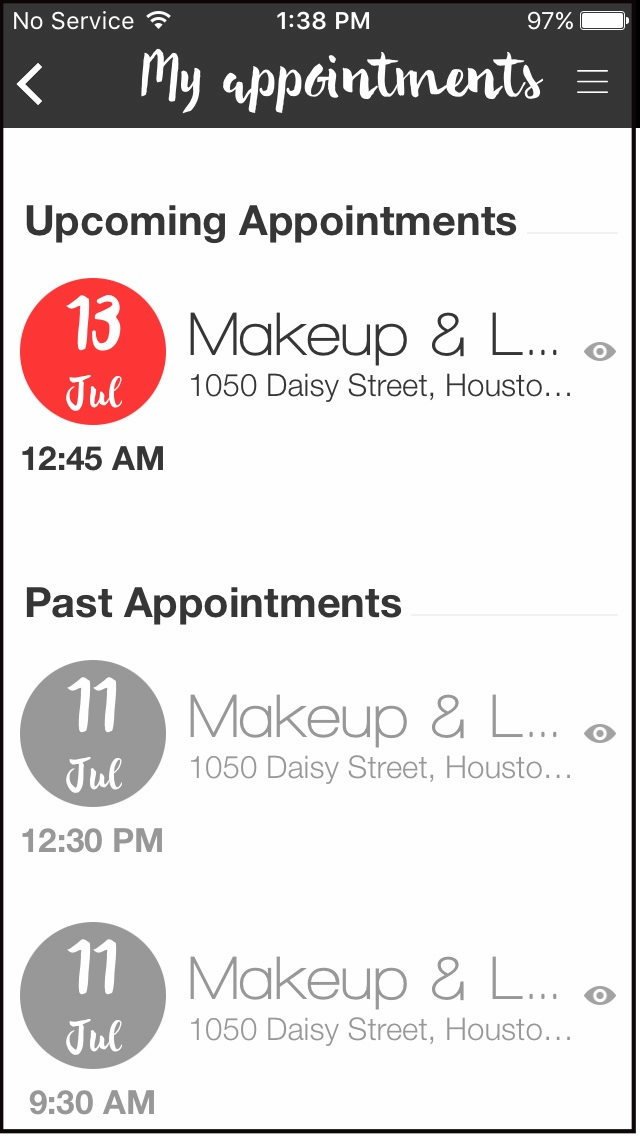
All that are with Red circle under Upcoming Appointments are current appointments.
Under Past Appointments are the completed appointments. Under Cancelled Appointments are Cancelled Appointments. -
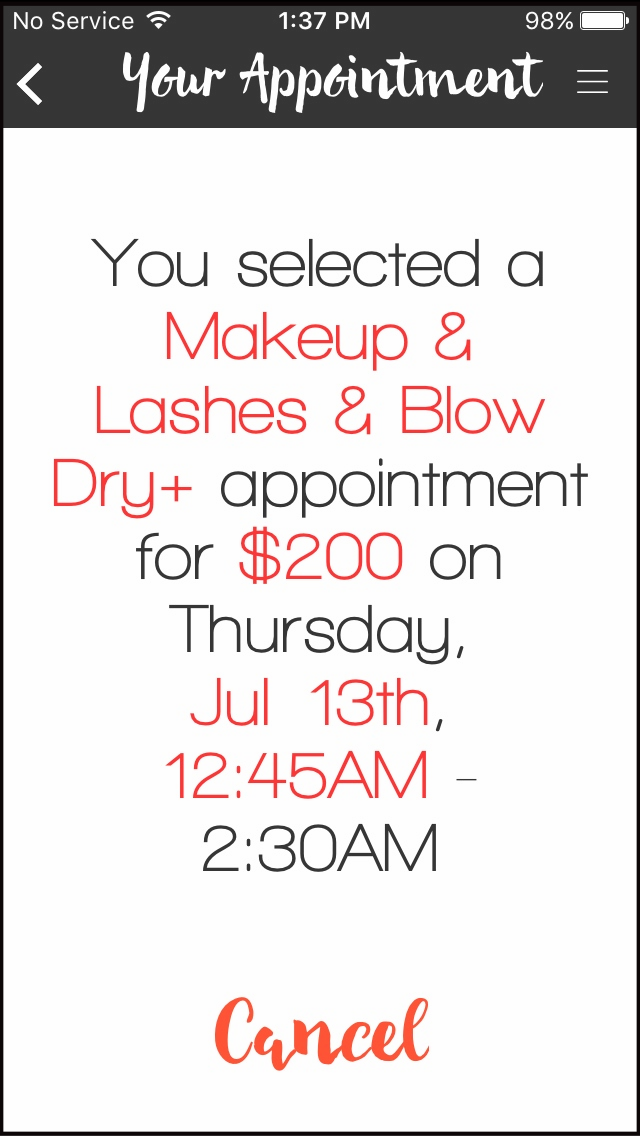
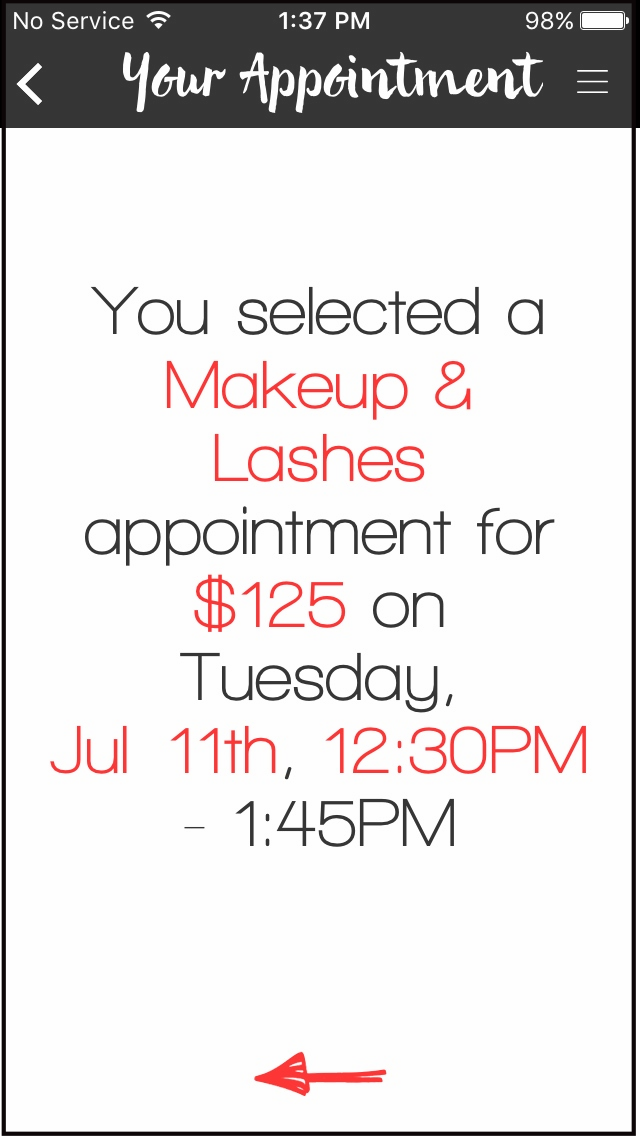
Press Eye Icon or the Schedule itself to be able to see the appointment details.
Upcoming Appointments
Past Appointments
How to Cancel or Modify an Appointment
-
Sign In to Zazzazu App.
You will be directed to this page.
-
Enter your log in information, then press the Red Arrow Button.
You will be directed to this page.
-
Press = on the upper right hand corner of the app.
Here you will see the Menu of Zazzazu App.
-
Press My Appointments. You will be directed to this page.
All that are with Red circle under Upcoming Appointments are current appointments, it can be cancelled or current appointment. If it is cancelled there will be a note on the appointment details that it is cancelled. Under Past Appointments are past or cancelled appointments.
-
Press Eye Icon or the Schedule itself to be able to see the appointment details.
Upcoming Appointments
-
Press Cancel to cancel the appointment.
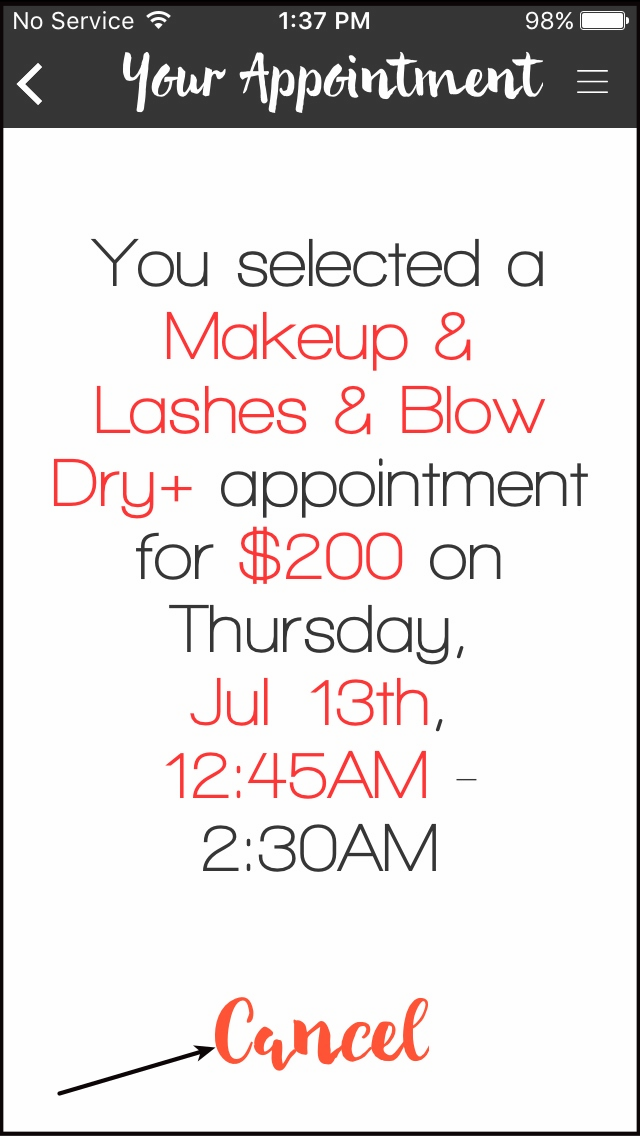
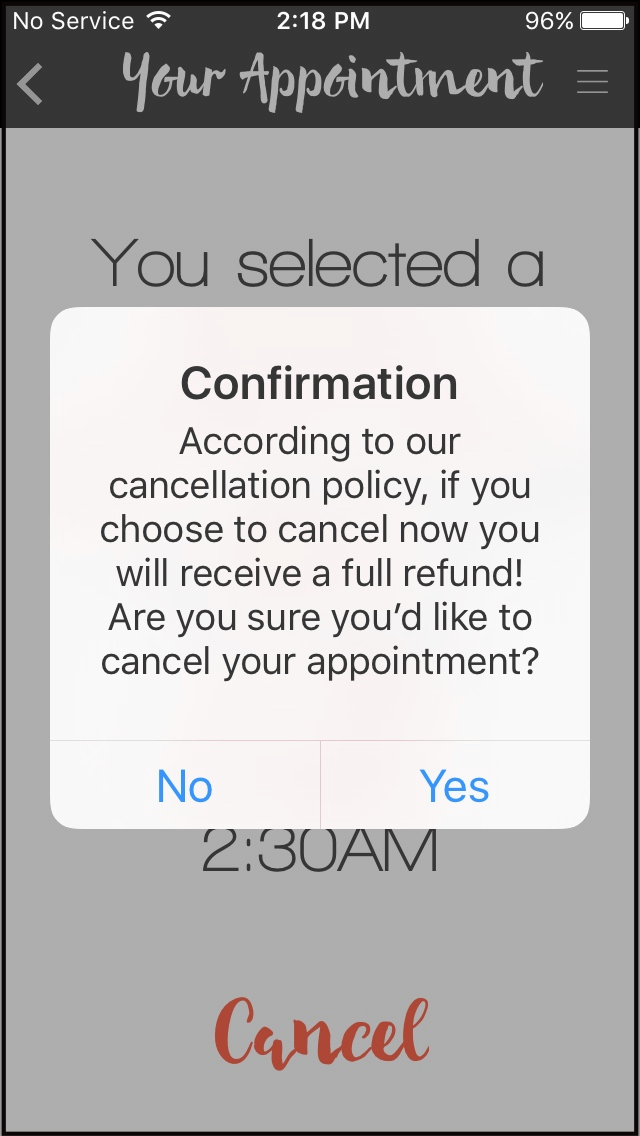
You will be directed to this page. Either the Pop Up Alert is with refund if the appointment is cancelled for MORETHAN 6hrs or without refund if the appointment is cancelled WITHIN 6hrs.
Within 6 hrs appointment cancellation.
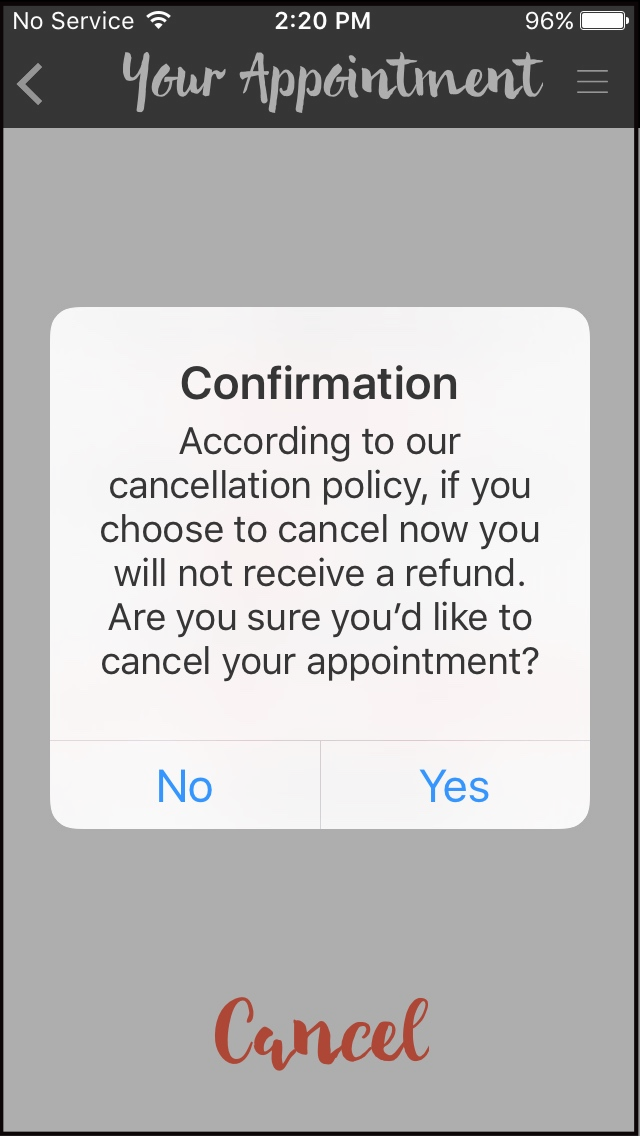
Morethan 6 hrs appointment cancellation.
-
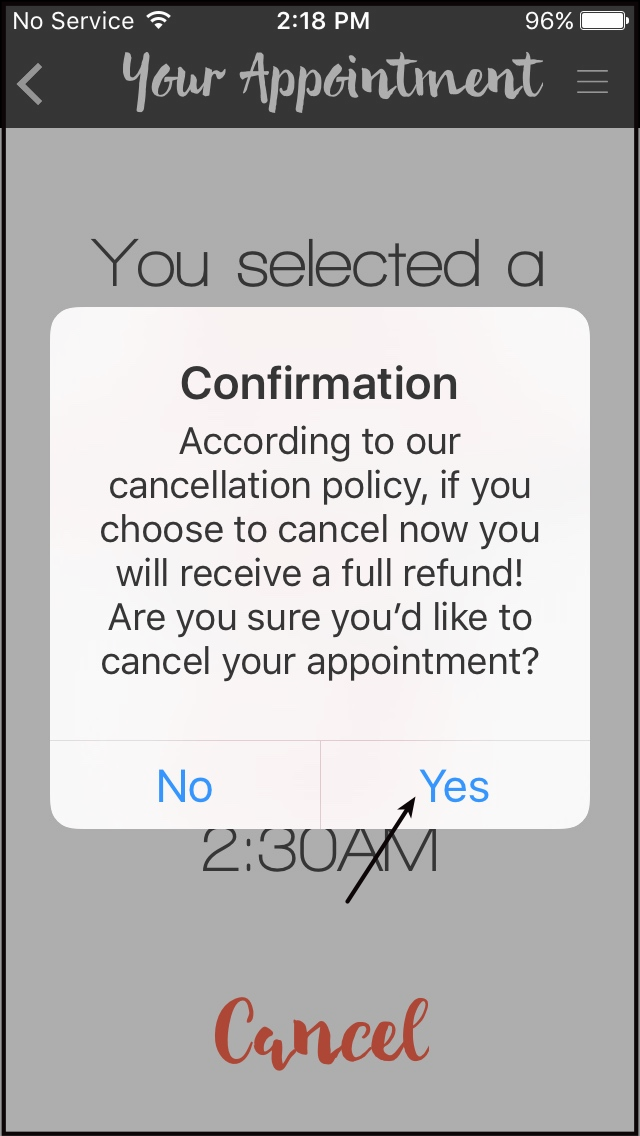
Press Yes to cancel the appointment. Press No if you don't want to cancel.
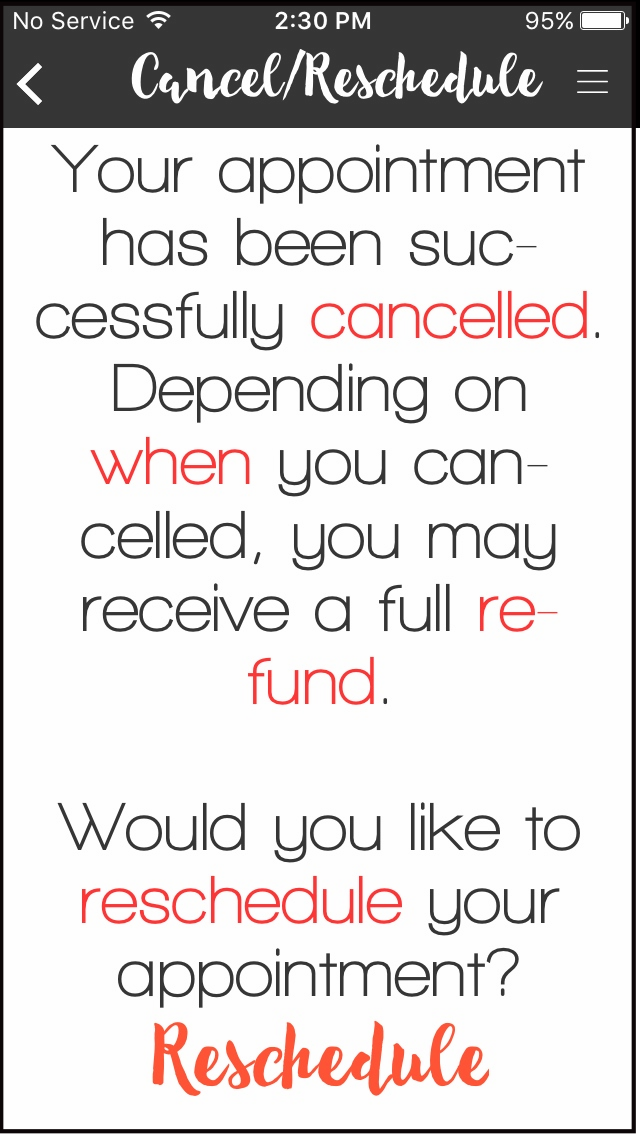
You will be directed to this page confirming that the appointment is cancelled.
-
Press Reschedule if you want to reschedule the appointment again. It will go back to Services category.