User Status
-
Active User - Active Zazzazu app users. These users have the access to Zazzazu app.
Active Regular User Account

-
Inactive User - Inactive Zazzazu app users. These users used to have access to Zazzazu app but deactivated their account so they don't have access to Zazzazu app anymore.

-
Waitlist Users - Users that tried to register on Zazzazu app but are out of coverage area of our services. This page is usefull to see what location/Zip code have bulk of users wanting our service.
Types of Users
-
Staff User - Admin users, the user that can and have access to manage the site.
The example user is an active staff/admin that is also a stylist that the admin reviewed.

-
Regular User - Zazzazu app customers.
-
Stylist Account - Stylist of Zazzazu app.
The example user is an active staff/admin that is also a stylist that the admin reviewed.

User Management
User Management - this is the page where you can manage all users using your Zazzazu app.
-
Click Users.

-
Click Users.

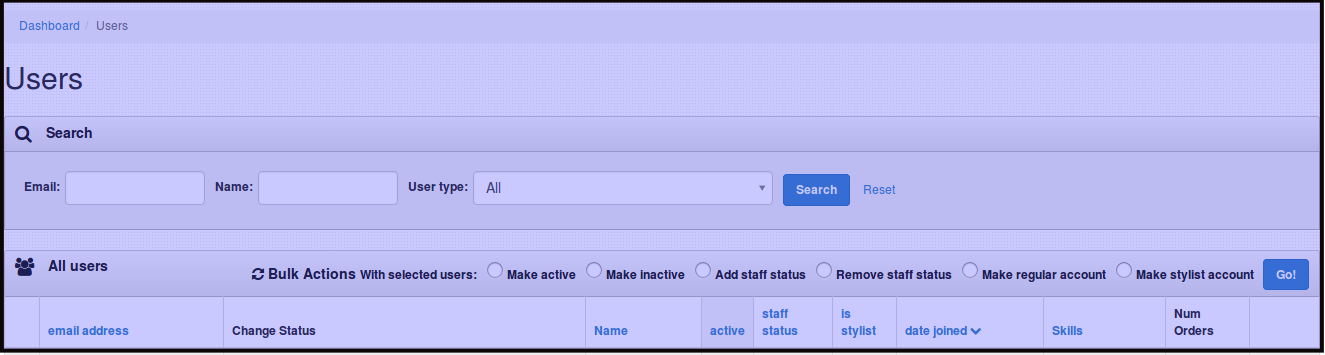
You will be directed to this page, where you will see all users on the system.
How to Change User Status or Type
-
Click Users.
-
Click Users.
You will be directed to this page, where you will see all users on the system.
-
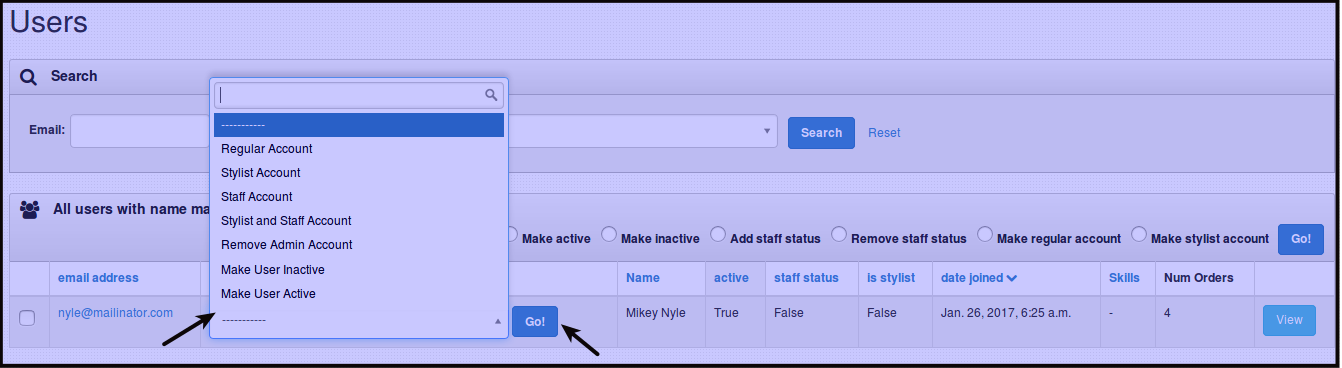
Click Check box beside the email address of the user you want to change Status or User Type or both.
To change Status of the user either Click Make active or Make inactive.
To change User Type either Click Add staff status or Remove staff status or Make regular account or Make stylist account.

OR click Change Status dropdown menu, choose the status you want to give the user, then click Go! beside the dropdown menu.
-
Click Go to confirm the change of Status or Type. From inactive user to Active user.
You will see the change right after you press Go.
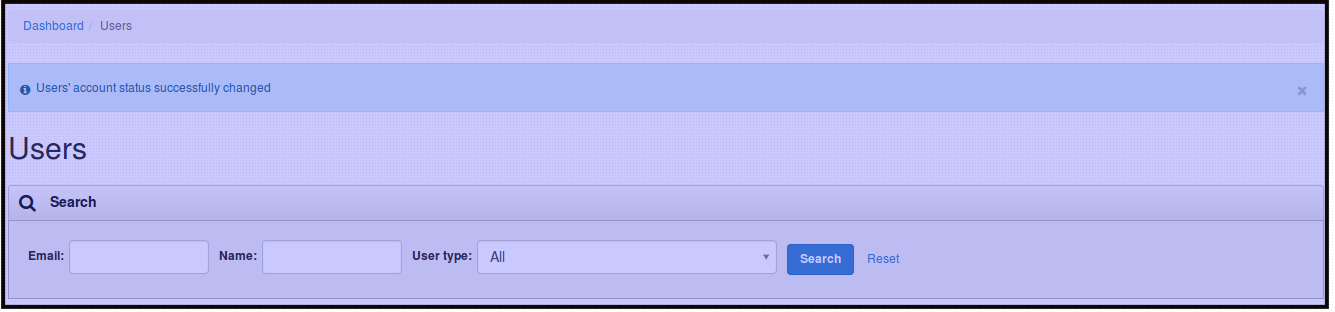
NOTE: Same steps will apply to change any User Status or Type.
Waitlist
-
Click Users.
-
Click Waitlist.
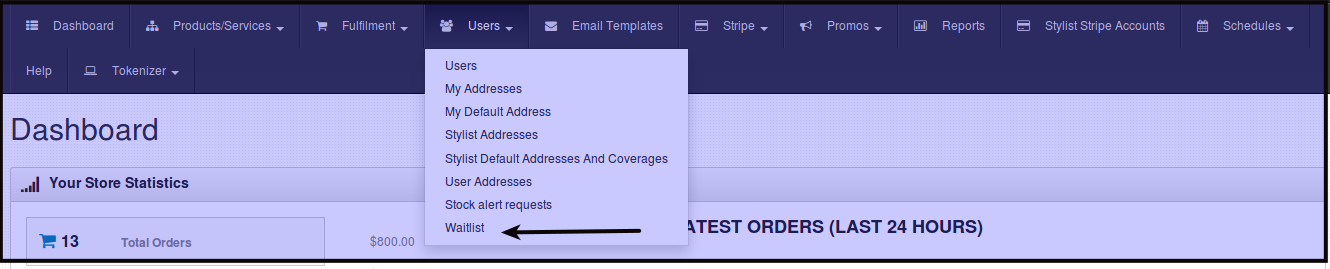
You will be directed to this page, where you can see all the customers who tried to use the app but is out of coverage area.

How to do Password Reset
-
Click Users.
-
Click Users.
You will be directed to this page, where you will see all users on the system.
-
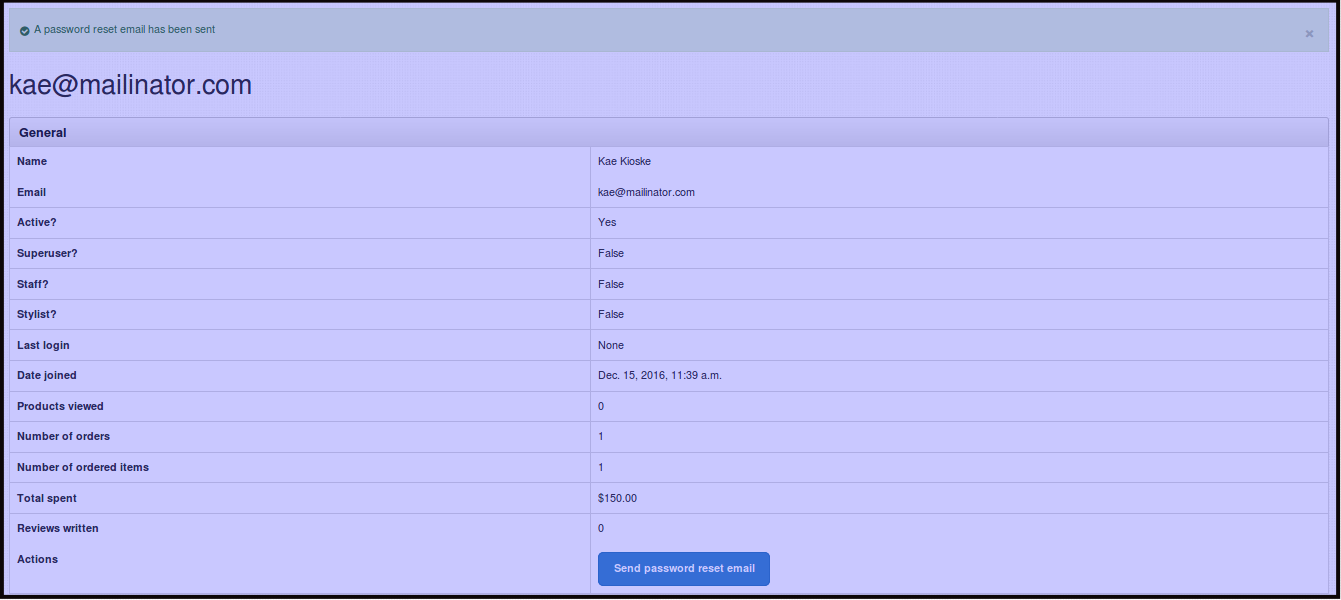
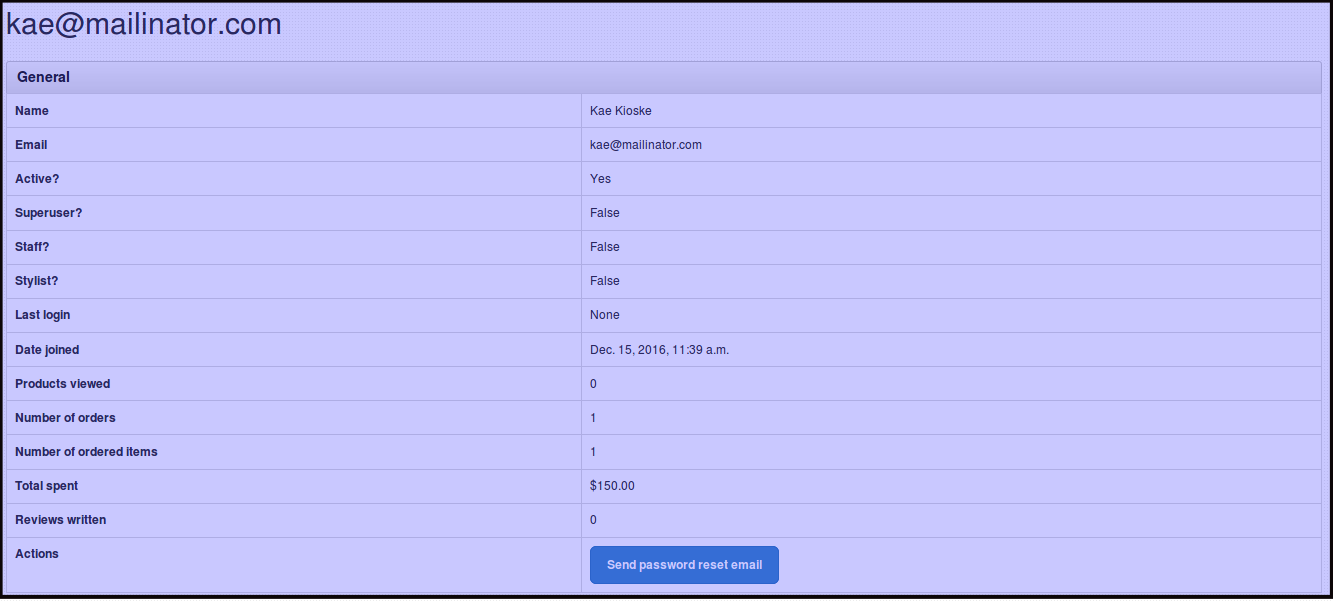
Click the email address of the user you want to do password reset with.

You will be directed to this page.
-
Click Send password reset email, this will trigger the system to send an email of the new password to the email address for the user.